
Home/Software/InputConfig/Troubleshooting
Controller not working on your Mac
Three checks fix most of it. Accessibility permission granted in System Settings, the controller paired and in the right mode, and a preset activated rather than only selected. If a preset has taken over your keyboard and mouse right now, hold Home, PS, or Guide for two seconds.
This page has moved. The current version lives at the fixes on inputconfig.com, which is kept up to date with every release.
Start here
Check the Accessibility permission
Open System Settings, Privacy & Security, Accessibility, and confirm InputConfig is listed and switched on. This is the permission that lets any app send keystrokes and mouse movement, and it is the only permission InputConfig asks for.
Check the controller is connected and in the right mode
Confirm it in System Settings, Bluetooth, or plug it in with a USB-C cable, then click Refresh Controllers in the controller popover at the top of the preset sidebar. An 8BitDo pad needs the mode switch on A, and an Access Controller needs a profile that actually has buttons assigned.
Check the preset is activated, not just selected
Clicking a preset in the sidebar opens it. It does not run it. Press Activate. Click the menu bar icon and the Status line reads Engine running with the poll rate while a preset is live, and Engine idle when nothing is.
If a preset has taken over right now
Hold Home, PS, or Guide on the controller for two seconds. That is the emergency stop, and it works no matter what the preset maps that button to. Full detail is in the emergency stop, in full.
Fixes by symptom
Find your symptom, open it, do the first thing listed. Everything below is for InputConfig 1.4 on macOS 14 or later.
The controller does not show up at all
Confirm the Mac itself sees it first: System Settings, Bluetooth for a wireless pad, or plug it in with a USB-C cable. Then click Refresh Controllers in InputConfig's controller popover.
If the Mac does not see it either, the usual cause is that the controller is still paired to something else. Controllers pair with one host at a time, so unpair it from the PlayStation, Xbox, or Switch first. On a Switch that is System Settings, Controllers and Sensors, Disconnect Controllers, then hold L and R when prompted.
Pads that Apple's controller framework does not support are still read directly as raw HID and show up under Connected Controllers in Settings. That covers the DualShock 3 over USB, Logitech F-series pads with the switch on D, most fight sticks, and most wheels.
A controller that still does not appear is most likely sitting in a vendor-specific mode that macOS never hands to a sandboxed app. The Logitech F-series is the clearest case: the X position speaks a vendor class the system will not enumerate for a sandboxed app, so only the D position reaches InputConfig. Try a different position on the mode switch if the controller has one. Full pairing walkthroughs are on the controller setup page.
The controller shows up but nothing happens when I press a button
Press Activate. Selecting a preset in the sidebar opens it for editing; it does not start it.
If the binding editor is open over a running preset, outputs are paused on purpose and a yellow banner says so. The engine keeps reading inputs so rows highlight as you press, but the cursor, keystrokes, and MIDI are held back. Close the editor and outputs resume.
If the editor is closed and the menu bar Status line still reads Outputs paused, something fired the Pause / Resume Outputs app action. Fire that action a second time to resume. Opening the binding editor and closing it again clears it too, because outputs always resume when the editor closes. The emergency stop will not clear it: that halts the engine, and the pause carries into the next activation.
If the engine is running, the editor is closed, and still nothing types, it is the Accessibility permission. See the next answer.
I granted Accessibility permission and it still does not type
Click on InputConfig to bring it to the front. macOS posts no notification when this permission changes, so the app re-reads it whenever it becomes the active app and when you use the button that opens the Accessibility pane.
Make sure the copy you approved is the copy that is running. The grant is attached to a specific app on disk, so a build in Downloads and a build in Applications are two different entries. Keep the one in Applications and delete the rest.
If InputConfig is listed and switched on but nothing types, remove the entry with the minus button in System Settings, Privacy & Security, Accessibility, then add InputConfig again and switch it on.
Do not go looking for an Input Monitoring prompt. InputConfig deliberately does not use Input Monitoring, so an empty Input Monitoring list is normal and is not the problem.
My Access Controller connects but no buttons respond
This is almost always a profile on the controller, not a fault. The Access Controller holds up to three on-device profiles, and a profile set up on a PlayStation to leave buttons unmapped sends nothing to a Mac. The controller is working. It is doing what the profile says.
- Look at the profile light on the front. The lit one is the current profile.
- Press the profile button to cycle through the three profiles.
- After each switch, press a button with InputConfig's scanner open to see whether it registers.
- If none of the three produce input, plug the controller into a PlayStation 5, open the Access Controller settings, and confirm at least one profile has buttons assigned. You can restore the default profile from that menu.
- Unplug it from the PS5 and reconnect it to the Mac.
If you move between PS5 and Mac, keep one profile set up for full input so the controller is always usable on the Mac without reconfiguring it. More on adaptive setups is on the accessibility page.
My 8BitDo controller's buttons are not registering
Switch it to Apple mode. Turn the controller off, find the mode switch on the back, slide it to A, turn it back on, and reconnect. Most models flash an LED pattern to confirm the change.
X and D positions are not dead ends. InputConfig reads XInput and DirectInput modes directly over raw HID, so most 8BitDo pads still map in either one and appear under Connected Controllers in Settings. Apple mode is the most complete.
The Ultimate 2C wired model is a special case: it has no Apple mode and no mode switch. InputConfig 1.3 and later reads it in its default XInput mode with no setup, so plugging it in is the whole job.
If it still will not connect, install the latest firmware with 8BitDo's firmware tool. Apple mode support was added or improved in firmware released after early 2023. What every switch position means, the button combinations for models with no switch, and the list of models 8BitDo supports in Apple mode are all on the controller setup page.
A preset has taken over my keyboard and mouse and I cannot stop it
Hold Home, PS, or Guide on the controller for two seconds. This is the one to remember, because it works no matter what the preset maps that button to, and it is watched on every connected controller, not just the first one.
Two other ways out: press Control Option Command ., or click the InputConfig menu bar icon and press Emergency Stop.
The emergency stop only ever stops. It never turns a preset on, so there is no risk in using it when you are not sure what is happening.
The emergency stop shortcut does nothing
Another app has claimed the chord. The shortcut is exclusive to whichever process registers it first, so if something else already owns Control Option Command and the period key, InputConfig cannot have it. Version 1.4 says so in an alert instead of failing silently. Pick a different chord in Settings, General, Emergency Stop.
A game running full screen with exclusive input can also swallow system shortcuts. The controller hold and a control bound directly to Emergency Stop both run inside InputConfig's own polling, so they keep working when the keyboard shortcut cannot get through. That is why the controller path is on by default.
Give a control its own stop button: in the binding editor set a row's output type to App Action and choose Emergency Stop. A back paddle or an unused face button works well, and on an Access Controller a dedicated switch works well.
The same controller appears twice
Update to 1.4. A Bluetooth reconnect can deliver the connect notice for the new connection before the disconnect notice for the old one, which listed both. Version 1.4 collapses that pair into one entry.
If a duplicate is already on screen, click Refresh Controllers in the controller popover.
When you build the binding, use Scan and press the control rather than picking an input by hand. The scan records the input that actually fired, so the binding lands on the connection that is really sending.
A key or a mouse button stayed held down after I stopped a preset
Fire the emergency stop. It releases every key InputConfig is holding, including media and special keys that have no ordinary key code, then every mouse button it is holding. Stopping a preset from the window runs the same release, so the emergency stop is not a stronger version of it, only one you can reach without the window.
If something is still held after that, check whether the binding uses Toggle mode, which latches on purpose: press once to hold, press again to release. A latched key is doing exactly what it was asked to, and it is released the moment the preset stops.
Quitting InputConfig also releases everything on the way out, so quitting can never leave a key down.
A MIDI note is stuck on
Deactivate the preset. Stopping a preset already fires the whole MIDI panic, not just the notes it is holding: a note off for every tracked note, then All Notes Off on all sixteen channels, then Reset All Controllers and a pitch bend recentre on all sixteen.
The emergency stop sends exactly that same sequence, and so does quitting the app, so use whichever you can reach fastest. There is no stronger version to escalate to.
If the note is still sounding after that, the receiving app lost track of it rather than InputConfig, and nothing InputConfig sends will be matched to it. Most DAWs have their own panic command for that case. More on the virtual MIDI port is on the MIDI page.
The stick drifts, or the cursor creeps on its own
Open the binding's Advanced section and click Calibrate. Move the stick all the way around to plot its range, then raise the inner deadzone until the resting dot sits inside the red circle. If full travel is not reaching full speed, lower the outer deadzone instead.
Update to 1.4 if you are on an older version. A stick resting right at the edge of its deadzone used to chatter on and off every frame, and 1.4 fixed that.
For a gyroscope binding, the drift is the sensor rather than the stick. A small dead zone is applied by default, 0.05 rad/s. If the cursor still creeps when you set the controller down, raise that binding's deadzone slider in Advanced.
See drift and chatter below for what the calibration plot is showing you.
Gyroscope bindings do nothing on my Switch Pro or Joy-Cons
They cannot work there. macOS does not expose the Switch Pro or Joy-Con motion sensors through Apple's controller framework, so no app on the Mac can read them. Buttons, sticks, and standard rumble all work normally.
Sony pads do publish motion: DualSense, DualSense Edge, and DualShock 4 report gyroscope rotation rate, accelerometer, and absolute attitude.
If a Sony pad's gyro is not working, some Bluetooth pairings drop the motion service even when the pad publishes it. Try a USB-C cable. To check whether motion is reaching the Mac at all, open the binding editor and look at its toolbar: the Calibrate Motion button only appears when a connected controller is actually publishing motion, so a missing button means the sensor is not getting through.
Presets that only use the trackpad or a cursor region do nothing
Update to 1.4. Before that, a preset with no game controller input in it ran only when a game controller happened to be connected, which defeated the point of it. In 1.4 trackpad, cursor region, and Mac tap presets run on their own.
One limit is not a bug: macOS does not give sandboxed apps per finger coordinates on a Mac trackpad, so a Mac trackpad region is a cursor region, based on where the pointer is. Real per finger data comes only from the DualSense and DualShock 4 touchpad surface, where two fingers are tracked independently.
If it is a Tap the Mac binding that will not run, check first whether the input is missing from the editor entirely rather than merely silent. That is a hardware limit, not this bug, and the Tap the Mac page lists which Macs carry the sensor.
InputConfig opened twice
From 1.4 on it cannot. The second copy shows an alert and quits, and offers to bring the running copy forward.
The reason is worth knowing. Two copies each run their own poll loop and both post to the same event tap, so controls the visible preset never bound appear to fire and the output becomes the union of two presets. Worse, the emergency stop shortcut is exclusive to one process, so the second copy's kill switch silently fails to register, leaving the runaway copy as precisely the one that cannot be stopped.
If more than one copy exists on disk, keep the one in Applications and delete the others, so the Accessibility grant and the app you launch always match.
Will updating the app erase my presets
No. Every preset, group, snapshot, statistic, touchpad calibration, and touchpad region lives in the app's own sandbox container. An App Store update replaces the app bundle in Applications and leaves the container alone, so nothing you set up is lost.
Settings, Advanced, Data and Storage holds the three buttons for it. Reveal Data Folder opens that folder if you want to look. Export Backup writes every preset, group, and stored preference into a single JSON file, and Restore from Backup reads one back. That is also the easiest way to move your setup to another Mac.
Dragging the app to the Trash leaves the container in place, so a reinstall picks up where you left off. Delete the container folder too if you want a genuinely fresh start.
Not listed here
InputConfig ships 25 help guides inside the app, with a search field, including ones for the Access Controller, 8BitDo modes, the emergency stop, and MIDI input. Help, InputConfig Help opens them. If the behaviour looks like a bug rather than a setting, open an issue on GitHub and say which controller, which macOS version, and what the menu bar Status line reported at the time.
The emergency stop, in full
One action that only ever stops, never starts. Four ways to fire it, and a fixed order of release.
The four triggers
- Hold a button on the controller
- Home, PS, or Guide held for two seconds, by default. Both the button and the hold time are configurable in Settings. This trigger is deliberately independent of the preset's bindings and is watched on every connected controller slot, on the principle that if a preset has taken over the keyboard and mouse, the controller in your hands has to be a way out.
- A system-wide keyboard shortcut
- Control Option Command . by default, from anywhere on the Mac. Period is the Mac's cancel key, and the three modifiers keep it clear of anything an app or game is likely to bind. Change it in Settings, General, Emergency Stop. If another app already owns the chord, InputConfig tells you rather than failing silently.
- The menu bar
- Click the InputConfig menu bar icon and press Emergency Stop.
- Any control you bind to it
- Set a binding row's output type to App Action and choose Emergency Stop. That control then stops everything the moment it is pressed. A back paddle, an unused face button, or a dedicated switch on an Access Controller all work well.
What it releases, in order
The order is deliberate: halt the engine first so nothing is pressed again on the next frame, then let go of everything, then give the pointer back.
The engine stops and the preset deactivates
This happens before anything is released, so the poll loop cannot re-press a key that is about to be let go.
Every held key and mouse button is released
Including media and special keys that have no ordinary key code, which are released through the same path they were pressed on.
Every MIDI note is released
A note off for each tracked note, then All Notes Off across all sixteen channels, then Reset All Controllers and a pitch bend recentre across all sixteen.
The pointer comes back
Any cursor confinement the preset applied is cleared and the pointer is made visible again.
Per-preset shortcuts are separate
Each preset can have its own system-wide shortcut, set with the Key field at the top of the binding editor. Pressing it switches to that preset; pressing it again while that preset is running stops it. Two presets cannot share a shortcut, and none of them may use the emergency stop chord. The editor says so if there is a clash.
Drift and chatter
What the deadzone calibrator is showing you, and which slider fixes which problem.
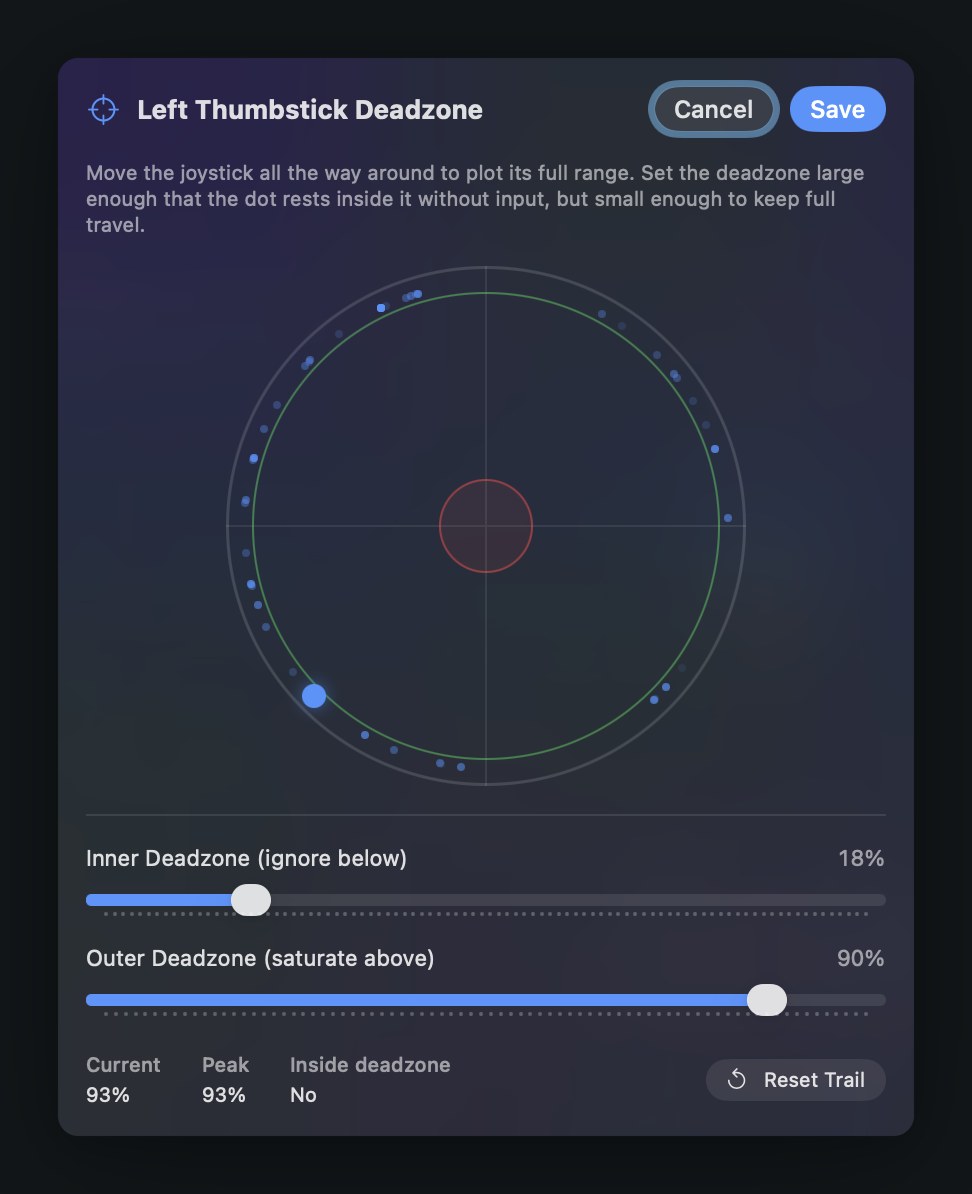
Move the stick all the way around first, so the plot has a real trail to judge against. Then let go and watch the dot at rest.
If the resting dot sits outside the red circle, that is your drift: the stick is reporting motion it is not making, and the app is passing it on. Raise the inner deadzone until the resting dot is inside the circle. The readout says Inside deadzone, Yes or No, so you do not have to judge it by eye.
If the stick reaches its physical limit before the output reaches full speed, lower the outer deadzone. That green ring is the point where the stick counts as fully pushed, and pulling it inward gives back the last part of the travel.
The same calibrator handles triggers, where the inner deadzone is the slack before the pull registers and the outer is the point where it counts as fully pulled. A binding that fires the moment you rest a finger on the trigger needs a larger inner value.
Compare both ends before you settle on numbers. The built-in Deadzone Calibration preset under Feature Showcases carries a wide profile on the right stick and a narrow one on the left, so the difference is there to feel on one controller. Choosing these values for tremor or for limited range of motion is covered on the accessibility page.
Source and links
- Report a bug on GitHubIssues, with the controller and macOS version
- InputConfigWhat the app is and what it does
- DocumentationEvery guide page in one index
- Controller setupConnect a game controller to a Mac
- AccessibilityAdaptive controllers and one-stick driving
- Release notesWhat changed in 1.4 and every version before it
- Mac App StoreDownload InputConfig 1.4, free
- Source code on GitHubThe full app, open under the MIT license
- Support[email protected]