
Home/Software/InputConfig/Tap the Mac
Tap your MacBook to trigger an action
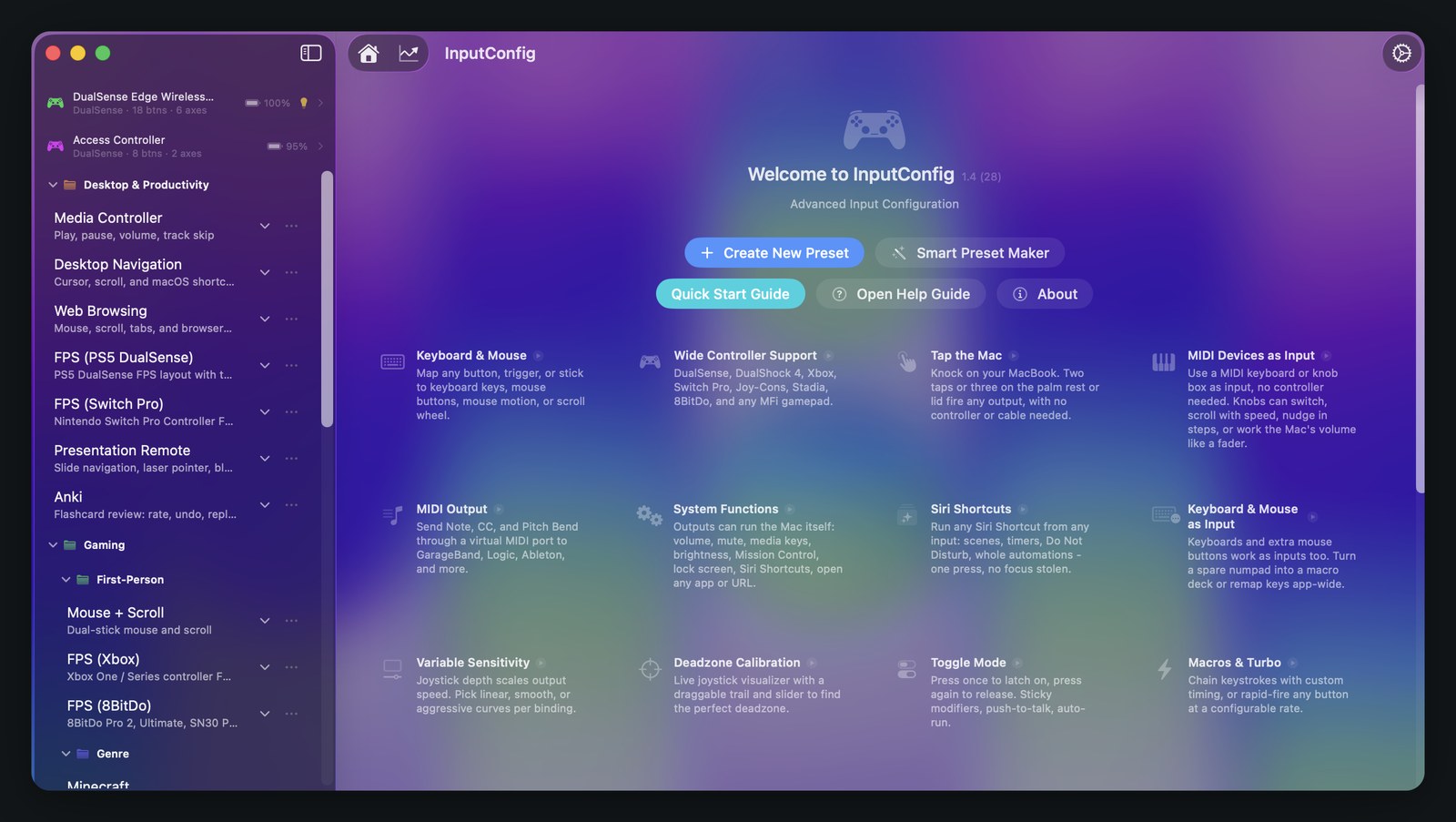
Your MacBook has a motion sensor in it. InputConfig listens to that sensor, so a double or triple tap on the palm rest or the lid can fire any output the app can send. No controller, no cable, and nothing to hold.
This page has moved. The current version lives at the Tap the Mac guide on inputconfig.com, which is kept up to date with every release.
Which Macs can do this
The hardware answer comes first, because it decides whether the rest of this page applies to you.
Tap the Mac reads an accelerometer that the Mac's sensor processing unit publishes to the system. That sensor is present on M2 and later, and on M1 Pro, M1 Max, and M1 Ultra. Those are the chips. Nothing gets plugged in, nothing gets paired, and the sensor itself asks for no permission of its own.
A base M1 MacBook Air or an M1 13-inch MacBook Pro does not have it. Both are Apple silicon Macs, and the sensor is still absent. Check the chip, not the era.
On a Mac outside that list the feature does nothing. The app does not hide it: Tap the Mac is still in the input type menu, a binding built with it still saves, and the preset still activates. It simply never fires, because there is no sensor to open and no taps ever arrive. There is no error message either. If you bind a double tap and nothing happens on such a machine, the chip is the reason and no setting will change it.
Everything else is the app's usual requirement: macOS 14.0 or later, and the Accessibility permission so InputConfig can type and click on your behalf. That is the only permission prompt the app shows. Setup covers it in full.
Apple silicon on its own is not the test
Some descriptions of this feature say it needs any Apple silicon MacBook. That is too broad. The base M1 does not publish the sensor, so an M1 MacBook Air and the M1 13-inch MacBook Pro are Apple silicon machines that cannot use it.
How it counts
Taps are told apart by how many arrive together, and the gap between them is what separates one gesture from the next.
- Single tap
- One accepted strike, then about 450 milliseconds of quiet. The gesture closes with a count of one.
- Double tap
- Two accepted strikes less than 450 milliseconds apart, then 450 milliseconds of quiet.
- Triple tap
- Three accepted strikes, each landing within 450 milliseconds of the one before. A triple fires the instant the third tap lands, with no waiting.
- A pause starts over
- Tap, pause, tap is two separate single taps, never a double. The gap is the whole distinction.
- A fourth tap
- The count stops at three. A fourth tap is not swallowed; it starts a fresh gesture of its own.
That 450 millisecond window sits just under the macOS double-click default, so the rhythm should feel like something you already know. For reference, measured double taps on a laptop case land roughly 280 milliseconds apart, which leaves plenty of room inside the window.
How a knock becomes a strike
The sensor streams at around 800 readings a second. Gravity is tracked with a slow filter and subtracted, so only the sharp part of an impact survives. What is left has to clear a threshold, which is whichever is larger: 0.055 g, or six times the current noise floor. The noise floor is shaped only by quiet samples, so a Mac sitting on a busy desk raises its own bar rather than firing all day.
Clearing the threshold is not enough. A crossing has to pass three more gates before it counts as a strike:
- Ring-down. The signal must have been genuinely below the threshold for 80 milliseconds first. A fingertip strike does not make one clean spike. It rings for 40 to 85 milliseconds and crosses the threshold in about a dozen decaying lobes, so without this gate the tail of one tap would be counted as a second tap.
- Spacing. At least 150 milliseconds since the last accepted strike, which rejects a bounce without getting in the way of a real double.
- Typing. Strikes that land next to real keyboard or click input are discarded. That is the next section.
A gesture commits once, with one final count, and only rows set to that count match it. A preset can therefore carry a single, a double, and a triple on the same input without them fighting each other. Binding a single tap alongside a double simply means the single waits out the 450 millisecond window before it fires, since the app has to know no second tap is coming.
The sensor is only woken while the active preset actually binds a tap. Activate a preset with no tap binding in it and the accelerometer is left alone.
Why the gesture starts at two taps
The tap count picker lists single tap, double tap, and triple tap. The built-in preset deliberately leaves single tap unbound, and the app is built on the assumption that you will do the same.
The reason is accidents. A single tap is by far the easiest count to fire without meaning to. Setting the laptop down on a desk is a strike. Closing a drawer under the desk is a strike. So is a knock against the table leg, or a bag brushing the lid. The detector's floor of 0.055 g and its adaptive noise floor throw out gentle handling, but they cannot throw out a genuine impact just because you did not intend it, and there is no measurement that separates a deliberate tap from an accidental one.
Two taps in a row inside half a second is the cheapest thing a person can do that the world around the laptop almost never does. That is the whole argument for starting at two.
If you do bind a single tap anyway, treat it as a control that will occasionally fire on its own, and pick an output where that is harmless. Do not put an emergency stop, a destructive keystroke, or anything irreversible on it.
Why typing does not set it off
A keystroke shakes the chassis at 0.15 to 0.22 g. That is the same range as a deliberate fingertip tap on the palm rest. Measured on the case, the two are indistinguishable, and keys struck 200 milliseconds apart would group into a perfectly convincing false double tap.
Because no threshold can separate them, InputConfig does not try. It looks at what you are doing instead. If a key press, a modifier change, a mouse button, or a scroll happened within the last 0.35 seconds, any strike arriving in that moment is discarded. Working at the keyboard therefore never triggers a tap binding, and neither does clicking or scrolling.
The trade is worth stating plainly, because it is the one thing about this feature that surprises people: a tap will not register while you are typing. Stop for about a third of a second, then tap. In practice this is what you do anyway, since you have to move a hand to the case to tap it.
The check reads the session's own event clock, so it needs no extra permission, and it only runs for strikes that already cleared the threshold, so it costs nothing at the sensor's full rate.
Setting it up
A tap is an input like any other, so it lives in the binding editor next to buttons, keys, and MIDI notes.
Open a preset for editing
Create a new preset or select an existing one, then open Edit Bindings and Mappings. A preset whose only input is a tap needs no controller in the list.
Add a row and set its input type to Tap the Mac
Open the input type menu on the row. Tap the Mac sits under the heading This Mac, below the controller and touchpad groups. Scan does not pick up taps, so choose the type from the menu rather than pressing Scan and knocking on the case.
Choose the tap count
The picker beside the type offers single tap, double tap, and triple tap. Start with double. There is no direction column for a tap, because a tap behaves like a button press rather than an axis.
Pick what it should do
Anything the app can send: a key or a chord, a typed phrase, a mouse click, a macro, a system function such as Mission Control or Start Dictation, a Siri Shortcut, an app or a URL, or a MIDI message. Bindings covers the full list of outputs and the per-binding options.
Save and activate the preset
Nothing fires until a preset is active. Activation is also when the app wakes the sensor, and only for presets that actually bind a tap.
Close the editor, then test it
Outputs are paused while an editor sheet is open, so a tap cannot fire while you are still editing. Close the sheet, then tap the palm rest or the lid twice with a fingertip, with a normal double-click rhythm. Wait a beat after your last keystroke, or the typing gate will discard the strike.
When a tap does not fire
There is nothing on screen to watch while you tap, so the usual causes are worth having in one list.
- The chip does not have the sensor. Check that first, above. Nothing else on this list matters if the Mac is a base M1 or older.
- The preset is selected but not activated. Selecting a preset in the sidebar opens it. Press Activate to start it.
- The binding editor is open. Outputs are held back while an editor sheet is up, and the app says so in a banner. Close it and outputs resume.
- You tapped too soon after typing. A key press, a modifier, a mouse button, or a scroll in the last third of a second discards the strike. Pause, then tap.
- The taps were too far apart. More than 450 milliseconds between them and you get two singles instead of a double. If the single is unbound, nothing happens twice.
- The strike was too light. It has to clear 0.055 g, or six times the current noise floor if the surroundings are shaking the Mac more than that. A firmer fingertip tap on the palm rest or the lid usually settles it.
- You used Scan. Scan reads controllers, keys, and axes. It does not read taps, so knocking on the case during a scan records nothing. Pick Tap the Mac from the input type menu instead.
If none of that is it, the rest of the app's symptoms are on Troubleshooting.
The preset that ships with it
InputConfig seeds 31 presets into your library on first launch, sorted into six folders. One of them is called Tap the Mac, and it lives in Feature Showcases. It has two rows and no device requirement at all, which makes it the only built-in preset that runs with nothing connected.
| Gesture | Output | What it needs |
|---|---|---|
| Double tap the Mac | Mission Control | Nothing beyond the app itself. |
| Triple tap the Mac | Start Dictation | Dictation switched on in System Settings, Keyboard. |
Both rows carry a written note in the editor saying what they do, so the preset reads as an example rather than a black box. Duplicate it and change the outputs, or copy the two rows into a preset you already use. Presets covers folders, duplication, and per-app switching.
The preset file is also published as a download on the InputConfig product site, in its Tap the Mac section. We do not host a second copy here, so that there is only ever one file to keep current.
Tap the Mac, the tap counting, and this preset all arrived in version 1.4. Release notes lists everything else that shipped with it.
What people use it for
An input that needs no device
For anyone who cannot reach or hold a controller, the case of the laptop is already within reach and needs no grip, no aim at a small target, and no setup. A tap anywhere on the palm rest or the lid counts, so there is no button to find. It is a small number of actions rather than a full input method, but it is two or three actions that cost nothing to have. Accessibility covers the fuller picture, including one-stick driving and the emergency stop.
A shortcut for when your hands are somewhere else
Double tap for Mission Control is quicker than reaching for a key combination when you are holding a coffee, a phone, or a cat. The same applies to a triple tap on Start Dictation: you begin talking to the Mac without touching the keyboard first.
One action you want fast and rarely
Some things do not deserve a keyboard shortcut you would have to remember. A Siri Shortcut that starts a timer, a URL that opens the one page you check hourly, or a typed phrase you paste constantly all work well on a triple tap, which almost nothing else in the world will fire by accident.
Trying the app with nothing plugged in
Tap the Mac is the fastest way to see InputConfig actually do something before a controller arrives or while one is charging. Activate the built-in preset, tap twice, and Mission Control opens. That is the whole loop the rest of the app is built on, running with no hardware at all.
Source and links
- InputConfig documentationEvery guide in this cluster, in one place
- InputConfig overviewWhat the app is and what it maps
- Bindings referenceEvery input it reads and every output it sends
- PresetsFolders, the Smart Preset Maker, and per-app switching
- AccessibilityAdaptive hardware, one-stick driving, emergency stop
- Release notesEverything that changed in 1.4 (28)
- inputconfig.comThe product site, and the Tap the Mac preset download
- Mac App StoreDownload InputConfig, free
- Source code on GitHubThe full app, open under the MIT license
- Support[email protected]