Home/Software/InputConfig/Bindings
Binding and output reference
What InputConfig can read, what it can send, and the per-binding options that decide how a control behaves. If you are hunting for the name of the thing you want, it is on this page.
This page has moved. The current version lives at the binding editor guide on inputconfig.com, which is kept up to date with every release.
On this page
How a binding works
One input, one or more outputs, and a row of options that decide what a press means.
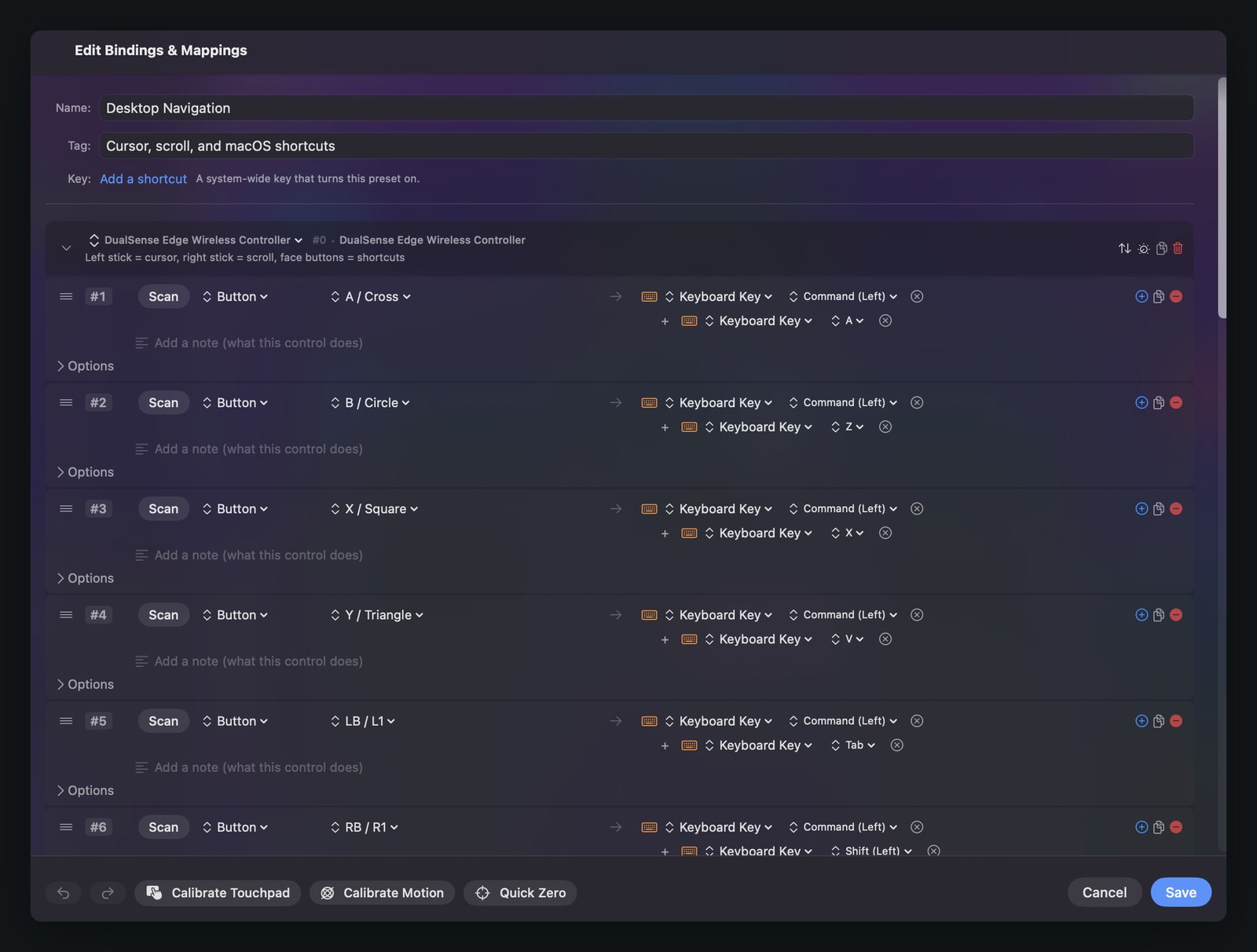
A preset is a list of bindings, and every binding has three parts. The input is the control you touch: a gamepad button, a stick, a key, a knob, a region of the screen. The output is what the Mac receives. A row can hold more than one output, which is how a single button sends Cmd and C together as a real combination. The options underneath decide whether a press is a tap, a hold, a double tap, a latch, a repeat, or something that only fires while another button is held.
You do not need to know what a control is called. Press Scan on the row and then touch the control, and InputConfig fills the row in with whatever it detected the instant you touch it. Scan reads a gamepad button or axis, a key on your Mac's keyboard, a click or a scroll, and a note or a knob on a MIDI device. Version 1.4 added the cases it used to miss: a modifier key pressed on its own, including Shift, Control, Option, Command and the fn / Globe key, plus the right Command key and F16 through F19.
Rows stay in the order you put them in. Drag the handle at the left of a row to move it, which also arrived in 1.4.
Everything InputConfig can read
These are the choices in a row's input menu. The name on the left is the name in the app.
| Input | What it means |
|---|---|
| Button | Any button on any connected gamepad. The DualSense Edge extras are ordinary buttons here: mute is 15, the left paddle is 16, the right paddle is 17, and the two FN buttons are 20 and 21. Unassigned paddles still report presses, so you can bind them even when they do nothing elsewhere. |
| Axis | A stick or a trigger, read as a signed half axis. The two directions of one stick axis are two separate bindings, so pushing left and pushing right can do different things. |
| Hat | The D-pad, as Up, Right, Down, and Left. |
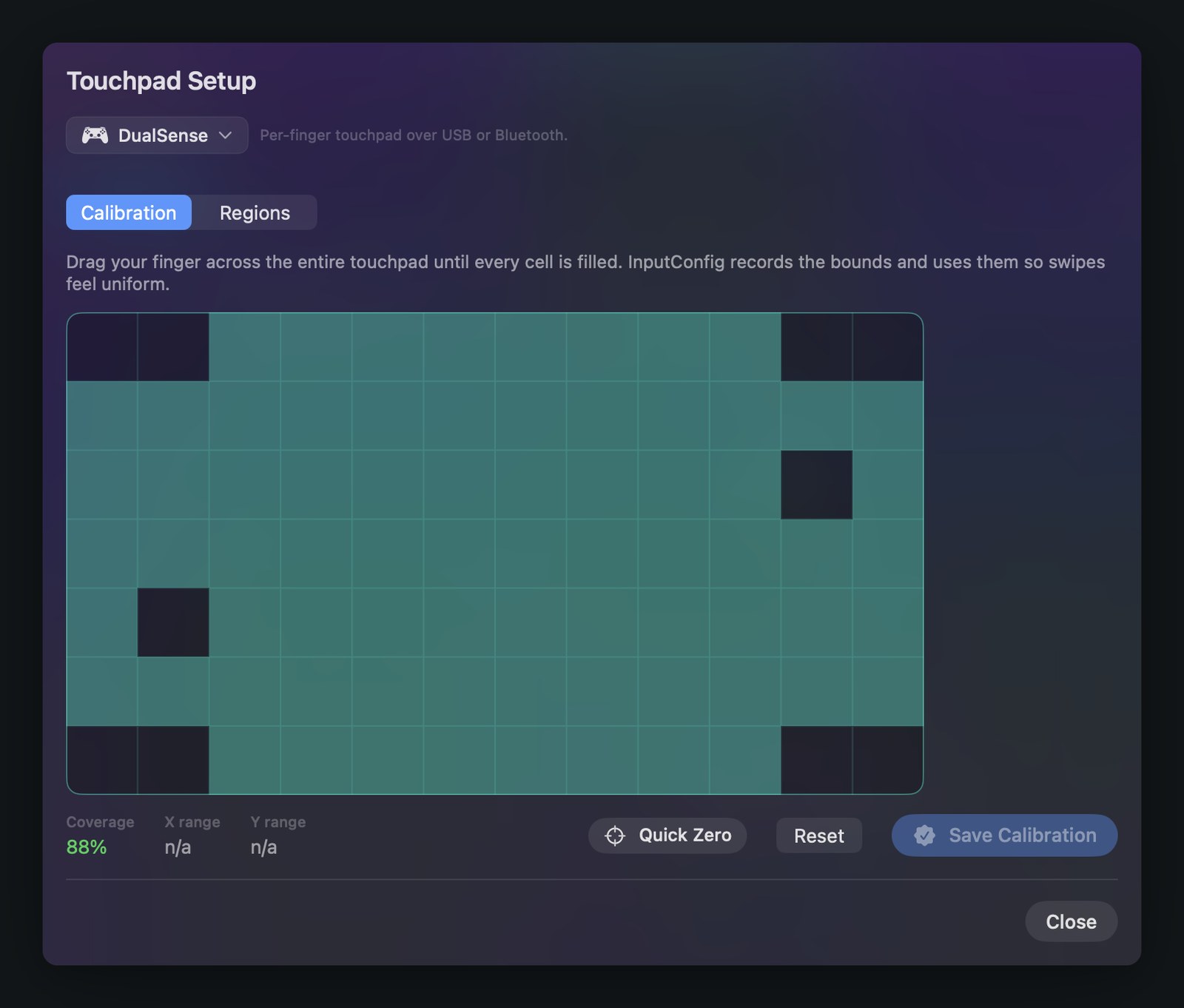
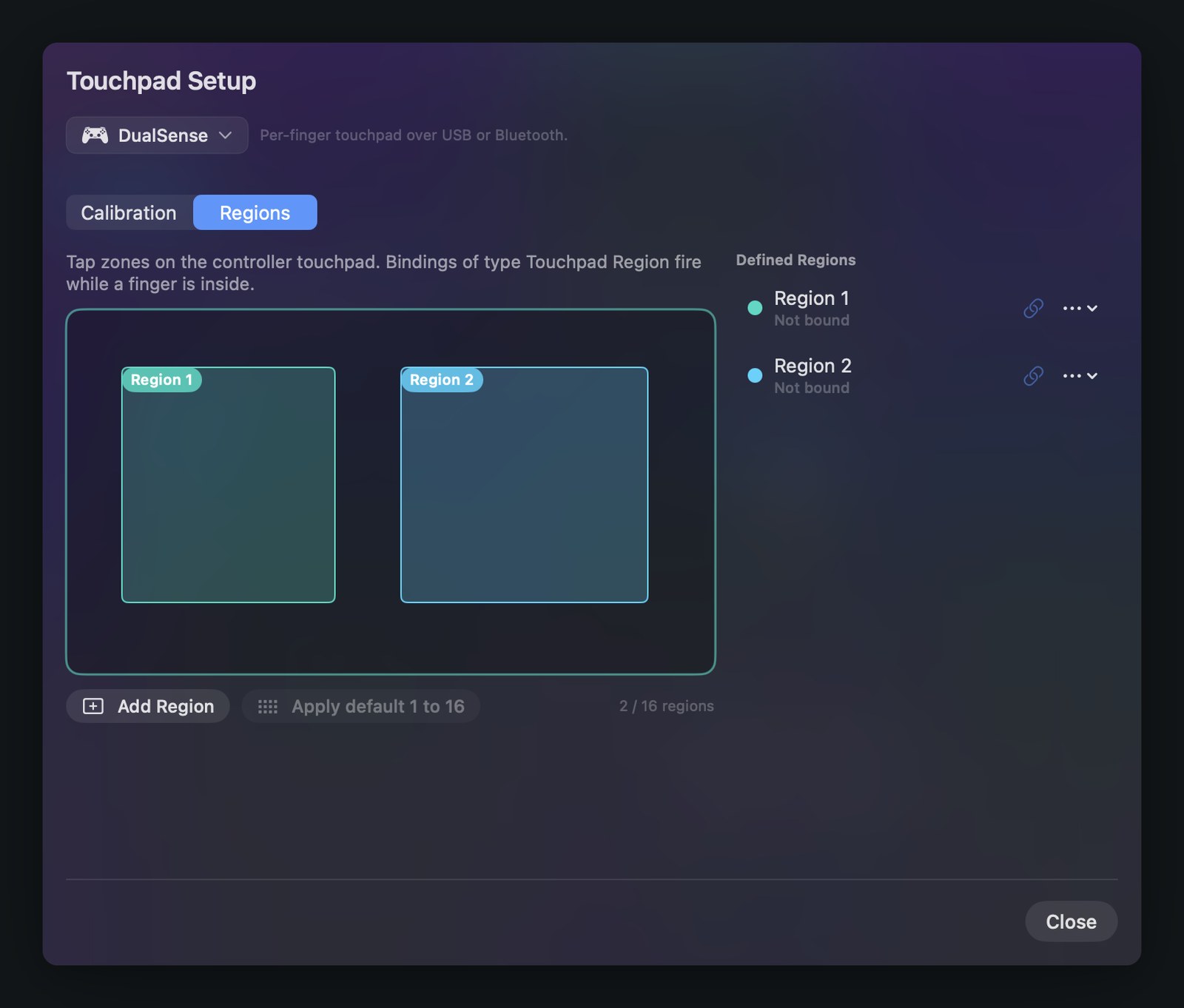
| Touchpad | The surface of a DualSense, DualSense Edge, or DualShock 4 pad, as X and Y movement. Two fingers are tracked independently, Finger 1 and Finger 2, so each one can drive a different output. Pressing the pad still fires as its own button. |
| Touchpad Region | A rectangle you draw on that same pad. It behaves like a button: inside is pressed, outside is not. |
| Touchpad Gesture | One gesture, the two-finger tap. |
| Motion | Gyroscope and accelerometer on nine channels: Gyro X, Gyro Y, Gyro Z, Accel X, Accel Y, Accel Z, and roll, pitch, and yaw angle. Each behaves like a half axis. macOS does not expose the Switch Pro or Joy-Con motion sensors, so gyro bindings come from Sony controllers. |
| Keyboard Key | A key on your Mac's own keyboard, or on a second keyboard, captured per device so the two stay separate. |
| Mouse | A mouse or trackpad, on seven kinds: Button, Move X, Move Y, Scroll X, Scroll Y, Pressure (Force Touch), and Deep Press. |
| Cursor Region | A rectangle on the display, evaluated against the pointer. The pointer entering it is the press. |
| Stick Region | A rectangle on a stick's own X and Y plane, index 0 for the left stick and 1 for the right, so a corner of the stick's travel gets its own binding. |
| Tap the Mac | A knock on the Mac's case, counted as a single, double, or triple tap. See tap your MacBook to trigger an action for the hardware requirement and how the counting works. |
| MIDI | A message from an external MIDI device: Note, Control Change, Pitch Bend, Program Change, or Aftertouch, filtered by channel and by device. See using a MIDI controller to control your Mac for the knob modes and the filters. |
Keyboard, mouse, and trackpad input all arrive through the Accessibility permission alone. InputConfig does not use Input Monitoring and asks for no second prompt.
A preset built only from the trackpad, a cursor region, or a Mac tap runs with no controller connected at all, which was fixed in 1.4.
Everything it can send
These are the choices in a row's output menu. Add more than one to a row and they fire together.
| Output | What it sends |
|---|---|
| Keyboard Key | Any key. Stack a modifier and a letter on the same row and they fire as a genuine combination, which is how Cmd C and Cmd Shift 3 are built. |
| Type Text | A whole word, sentence, or block of text from a single press. Useful for an address, a signature, or a command you retype all day. |
| Mouse Button | Mouse Click, Right Click, Middle Click, and higher-numbered buttons. Holding a mapped click while moving a stick sends real drag events, so window moves, text selection, and sliders work. |
| Mouse Motion | Moves the pointer from an axis. With variable sensitivity on, the speed follows how far the control is pushed. |
| Mouse Wheel | Continuous scrolling, smooth rather than notched. The fractional part is carried between frames, so slow scrolling stays smooth. |
| Mouse Wheel Step | One notch per press, a fixed five pixel tick, positive or negative. |
| System Function | One of the 23 macOS actions listed in the next section. |
| System Volume (follows input) | The Mac's volume follows the control's position like a fader instead of stepping. See the note under the system function table. |
| App Action | Seven actions that drive InputConfig itself, listed below. |
| MIDI Note | A note with velocity, on a channel of your choice. |
| MIDI CC (Control Change) | A control change value on any CC number. |
| MIDI Pitch Bend | Fourteen bit pitch bend, centred at rest. |
| MIDI Program Change | A program change message. |
| MIDI Transport | Start, Stop, and Continue. |
All five MIDI outputs leave the Mac through a virtual port named InputConfig, which any DAW sees as an input with no extra setup. The details are on the MIDI page.
App actions
Set a row's output type to App Action and pick one of seven: Activate Preset, Next Preset, Previous Preset, Deactivate, Pause / Resume Outputs, Pause Motion While Held, and Emergency Stop (release everything). The last two arrived in 1.4.
Pause Motion While Held stops motion aim while a button is down, so you can swing the controller back to a comfortable angle without dragging the pointer, the way you lift a mouse off the desk.
Emergency Stop halts the mapping engine, releases every key, mouse button, and MIDI note it is holding, and gives the pointer back. It only ever stops, never starts. It is also a system-wide keyboard shortcut, a button in the menu bar, and a two-second hold on Home, PS, or Guide. That hold works no matter what the active preset maps that button to, and it is watched on every connected controller, so a preset that has taken over the keyboard and mouse can always be escaped from the controller in your hands.
Three more things a press can do
These are not output types. They are switches inside a row's Options, and they fire alongside whatever the row already sends.
- Macro sequence. A list of steps, each with its own delay before it and its own hold time. A Hold down step keeps its key held while the following steps run, which is how a macro produces a real chord, and a Release step lets it go. Turn on Stop on release to interrupt the sequence when you let go of the control. While a row has macro steps, the macro takes over: it fires instead of the row's normal outputs.
- Spoken phrase. The binding speaks a phrase when it fires. Leave the phrase blank and it speaks the input's name instead. Speech plays through whatever audio output your Mac is currently using. If you want it in a controller speaker, choose that controller as the output in System Settings, Sound.
- Haptic feedback. Vibration on press, with a strength slider. Controllers with full Core Haptics support vibrate, and controllers with only basic rumble motors are skipped.
System functions
Twenty-three macOS actions you can put on any control, in the six groups the output menu uses.
| Group | Functions | What they do |
|---|---|---|
| Sound | Volume Up, Volume Down, Mute / Unmute | One press moves the level a sixteenth of the range, the same step the keyboard uses. Nudging the volume up also unmutes. |
| Media | Play / Pause, Next Track, Previous Track | Real media keys, so anything that answers the keyboard's media keys answers these. |
| Display | Brightness Up, Brightness Down, Keyboard Brightness Up, Keyboard Brightness Down | Screen brightness and keyboard backlight. The two keyboard brightness functions were added in 1.4. |
| Accessibility | Start Dictation, Speak Selection, Zoom On / Off, Zoom In, Zoom Out | New as a group in 1.4. Start Dictation presses the dictation key itself, exactly as pressing F5 does, so it follows whatever your dictation shortcut is set to. Press once to start, again to stop. |
| Mac | Mission Control, Launchpad, Spotlight Search, Lock Screen, Screenshot Menu | The system windows and panels, from one control. |
| Automation | Run Siri Shortcut, Open App, Open URL | The only three that take a value you type or pick. Run Siri Shortcut takes a shortcut name and runs it without taking focus. Open App accepts an app name, a bundle identifier, or a full path. Open URL opens anything the Mac has a handler for, including https and mailto. |
Five of them need a macOS setting switched on first
Start Dictation needs Dictation switched on in System Settings, Keyboard. Speak Selection needs Speak selection switched on under Accessibility, Spoken Content. The three Zoom functions need Use keyboard shortcuts to zoom switched on under Accessibility, Zoom. InputConfig prints each requirement under the function's name in the picker, so you do not have to remember them.
System functions fire on press and have no release half, so they suit a tap rather than a hold. That also makes them a good match for a MIDI knob set to Turn mode, which the MIDI page covers.
For volume there is a second option that is not a system function. System Volume (follows input) is its own output type, and it makes the Mac's level track a trigger, a stick, or a MIDI control one to one. It does not grab the volume the moment a preset activates. Instead it records where the control is resting at that moment and stays quiet until the control has moved about 2 percent of its travel from that baseline. Moving the control is the consent.
Per-binding options
Open Options on any row. This is where most of the answers on this page live.
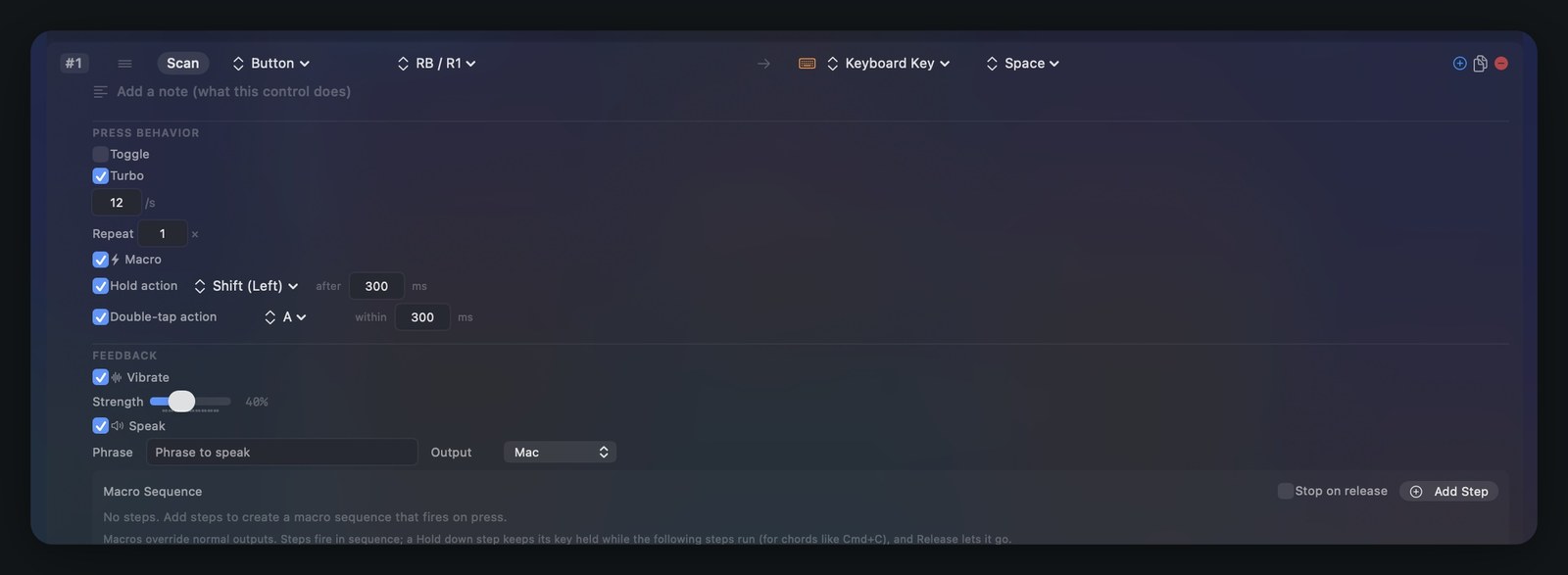
- Toggle
- Press once to latch the output on, press again to let it go. Good for a modifier you need held for a long time, such as a sticky Shift.
- Turbo
- Turns a hold into a stream of presses at a rate you set, ten a second by default.
- Repeat
- Fires the output a set number of times from one press, with your own delay between them, 100 milliseconds by default.
- Hold action
- A second set of outputs that fires when the control is held past a threshold you set in milliseconds. The tap keeps its own outputs.
- Double-tap action
- A third set, fired by two presses inside a window you set in milliseconds. With tap, hold, and double tap, one button covers three jobs.
- While holding
- New in 1.4. The row fires only while a second button on the same controller is held, so Triangle plus D-pad up can run a macro while D-pad up on its own keeps its normal job. Keep a plain row for the normal action and add a chord row beside it; while the modifier is down the plain row stays quiet, so the two never fire together. Hold the modifier first, then press the button, the same order as Shift plus a key. The modifier keeps whatever binding it already has, so pick a button with nothing on it, such as a back paddle, if you do not want it firing as well. Chords are for game controllers. Keyboard, mouse, and MIDI rows do not offer a modifier.
- Inner and outer deadzone
- How much travel near the centre is ignored, and how far from the centre counts as full. The inner deadzone starts at a quarter of the travel. Both have a live calibrator that plots your real input while you drag the sliders, which is the practical fix for stick drift and for a stick that only travels a little.
- Invert axis
- Flips the direction of an axis without rebuilding the binding.
- Sensitivity curve
- Three choices. Linear feels direct. Smooth gives finer control near the centre. Aggressive ramps quickly to full speed.
- Variable sensitivity
- Scales the output by how far a stick or trigger is pushed, so mouse motion and scroll speed grow with pressure. A small tilt produces small movement and a full push produces full movement.
- Stacked outputs
- More than one output on a single row, fired in parallel. This is how a modifier chord is built, and how one press can send a key and a MIDI note at the same time.
- Note
- A line of your own text on the row saying what the control does. It costs nothing and it is the difference between a preset you can still read in six months and one you rebuild from scratch.
Options survive copying
As of 1.4, duplicating a binding or a slot, and converting a preset from one controller to another, keep every setting on the row: chords, macros, deadzones, curves, and the rest. Earlier versions dropped some of them.
Two keys people look for
fn and Globe are two different things
macOS treats them separately, so InputConfig lists them separately, both added in 1.4. fn / Globe (hold) sits under Modifier Keys and adds the fn modifier to another key, which is how shortcuts like Globe plus E and Globe plus D work. Globe Key (Emoji) sits under Special Keys and presses the Globe key on its own, firing whatever you have set that key to do.
If a Globe shortcut is not working from a controller, it is almost always the wrong one of these two.
The dictation key is the other one people hunt for, and it does not need a key output at all. Use the System Function output and pick Start Dictation from the Accessibility group.
Where to go next
MIDI in and out
The three knob modes, per-binding channel and device filters, and the virtual port a DAW connects to.
Presets
Where bindings live: the built-in library, folders, the Smart Preset Maker, automation, and sharing.
Tap your MacBook to trigger an action
The input that needs no hardware, what it requires, and how single, double, and triple taps are told apart.
All InputConfig documentation
Setup, accessibility, troubleshooting, and release notes, all in one place.
Source and links
- InputConfigWhat the app is, and who it is for
- DocumentationEvery page in this set, for version 1.4
- Use a MIDI controller to control your MacKnob modes, channel filters, and MIDI out to a DAW
- PresetsThe built-in library, folders, and per-app switching
- Tap your MacBook to trigger an actionThe 1.4 input that needs no hardware
- Mac App StoreInputConfig 1.4, free, macOS 14 or later
- Source code on GitHubThe full app, open under the MIT license
- Support[email protected]