
Home/Software/InputConfig/Presets
Presets and per-app switching
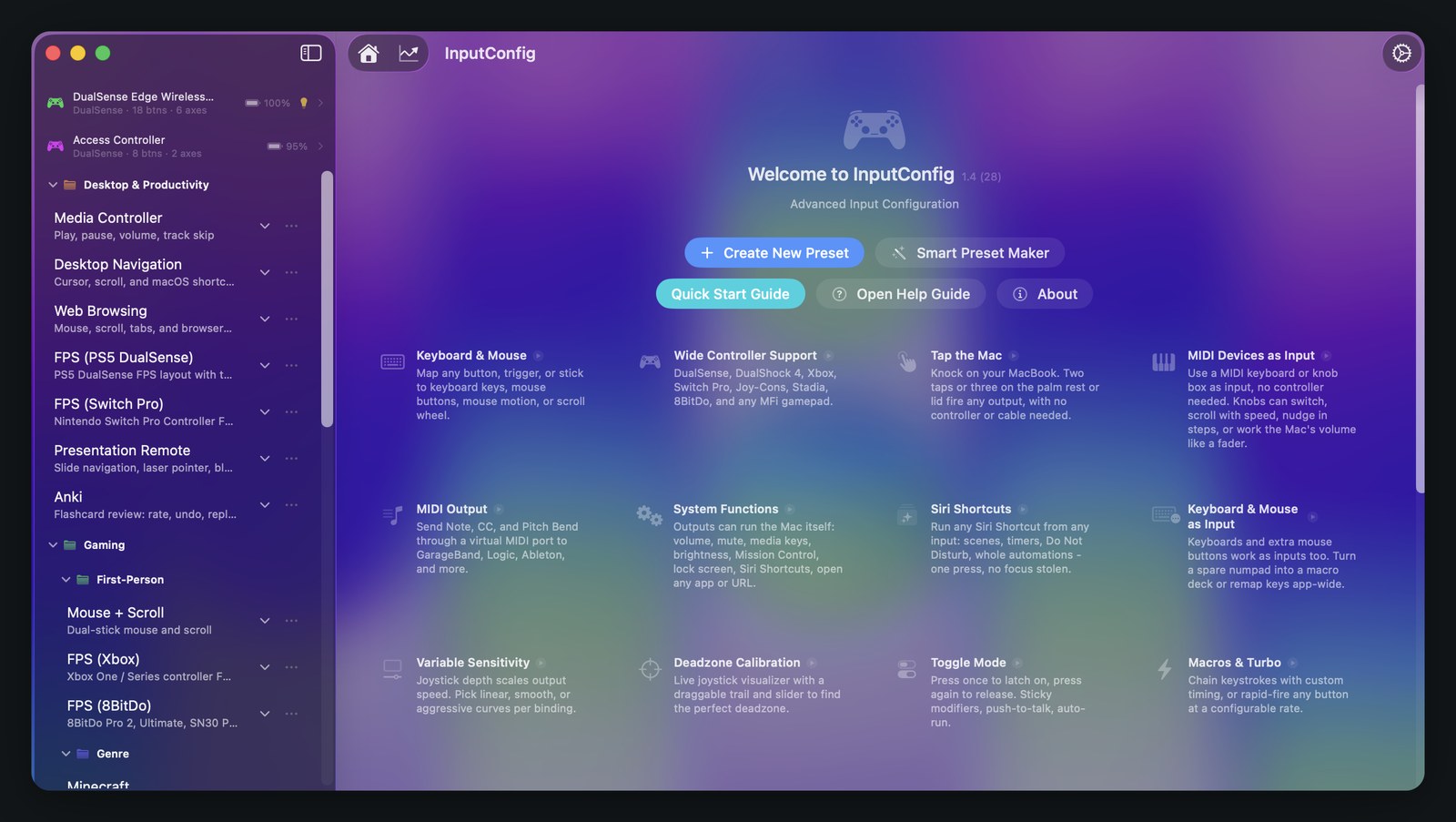
A preset is one controller layout. InputConfig ships with thirty-one of them, can build a tailored one from a library of 458 games, apps, and workflows, and can switch to a preset by itself when its app comes to the front.
This page has moved. The current version lives at the preset library on inputconfig.com, which is kept up to date with every release.
What a preset is
A preset is one saved layout. It carries a name, a short tag describing what it is for, the controller slots it covers, and the list of bindings that say which control sends what. One preset runs at a time. Activate it and the mapping engine starts; deactivate it and your Mac goes back to behaving normally.
Each preset is its own file, so there is no limit on how many you keep. This page is about handling them: what ships, how to have one built for you, how to sort them, how to make them switch by themselves, and how to move them between Macs. What goes inside a preset, meaning every input InputConfig reads and every output it can send, lives on the binding and output reference.
Two numbers, kept apart
These get merged together often enough that it is worth stating them separately.
- 31 presets ship with the app. They seed into your library the first time you open InputConfig, filed into six folders, one of which holds only other folders, and you can edit, rename, or delete any of them.
- The Smart Preset Maker draws on 458 profiles. That is 294 games, 127 apps, and 37 workflows, held inside the app and used to build a preset when you ask for one. None of the 458 are sitting in your sidebar. Nothing appears there until you make it.
So the library you land in is small and readable, and the thing behind the Smart Preset Maker is large. Both numbers are true, and neither one is the other.
What ships with the app
Six folders on first launch. Gaming is a parent that holds two folders of its own.
| Folder | What is in it | Presets |
|---|---|---|
| Desktop & Productivity | Running macOS itself: the cursor, scrolling, a browser, media playback, presenting, and flashcards. | 6 |
| Gaming | A parent folder. It holds the two folders below and no presets directly. | 0 |
| First-Person | Nested under Gaming. One first-person layout per controller family. | 4 |
| Genre | Nested under Gaming. Layouts built around a named game or a style of game. | 3 |
| MIDI & Creative | Presets that send MIDI to a DAW, and presets driven by MIDI gear. | 6 |
| Feature Showcases | One preset per feature, already set up so you can try the feature rather than read about it. | 12 |
The 31, by folder
Desktop & Productivity: Desktop Navigation, Web Browsing, Mouse + Scroll, Media Controller, Presentation Remote, Anki.
First-Person, inside Gaming: FPS (PS5 DualSense), FPS (Xbox), FPS (Switch Pro), FPS (8BitDo).
Genre, inside Gaming: Minecraft, Fortnite, Racing Game.
MIDI & Creative: MIDI: DAW Performance, MIDI: Drum Pad, MIDI: Transport Control, MIDI: Knob Deck, MIDI: Media Deck, MIDI: CC Dials. The MIDI page explains what each of those is doing.
Feature Showcases: Variable Sensitivity, Deadzone Calibration, Haptic Feedback, Spoken Feedback, Macros & Turbo, Touchpad Mouse, Steam Controller, Gyro Aim, Motion Cursor, Toggle Mode, Stacked Outputs, Tap the Mac.
The showcase folder is the quickest way to find out whether a feature is what you thought it was. Activate Toggle Mode and press the button. Activate Tap the Mac and knock on the palm rest, on a Mac that carries the sensor it reads; the Tap the Mac page says which Macs those are and what happens on the ones that do not. Each one is a working example you can pull apart.
The Smart Preset Maker
Five questions, then a finished preset with its bindings already filled in.
What do you want to do?
Three choices: play a game, work in an app, or a workflow. The workflow category is the one to look at for desktop, web, media, presenting, and accessibility layouts.
Pick one
A searchable list of every profile in that category. Type to filter by name or by the one-line description under it.
Which controller?
Seven to pick from: DualSense, DualShock 4, Xbox, Switch Pro, 8BitDo, Stadia, and a generic gamepad. Anything currently connected carries a Connected badge, and every entry lists that controller's capabilities underneath, so the pick is made on what the hardware has rather than on the name.
Fine-tune
Optional extras before it is built: open an app when the preset activates, confine the cursor, auto-recenter it, hide it, and pick a light bar colour if the controller has one. The profile's own tips show here too.
Name and save
Name the preset and choose the folder it lands in, or leave it ungrouped. The same screen summarises what you chose and previews the first few rows it is about to write, so nothing gets created sight unseen.
The library behind it holds 458 profiles: 294 games, 127 apps, and 37 workflows. Each one is a set of bindings, a suggested light colour, cursor settings, and a few tips, and the maker assembles it against the controller you chose. Because it builds on demand, a library that size never has to become a sidebar that size.
Two profiles share a display name with another, so the lists show 456 distinct names across the three categories. Anything the maker produces is an ordinary preset afterwards: rename it, re-bind it, move it, delete it.
Nothing is locked
InputConfig 1.4 is free on the Mac App Store, and the Smart Preset Maker is part of the free app. There is no paid tier and no trial. The tip jar unlocks nothing.
Organising them
Folders are yours to rearrange. Right-click any folder in the sidebar for Rename Folder, Folder Color, New Subfolder, Move to Folder, and Delete Folder. Folders nest, which is how Gaming ships holding First-Person and Genre, and how you can build the same shape for your own work.
Ten tints are on the swatch grid: blue, purple, pink, red, orange, yellow, green, teal, indigo, and brown, with the macOS colour picker underneath for anything else. The six shipped folders start out orange for Desktop & Productivity, green for Gaming and First-Person, indigo for Genre, red for MIDI & Creative, and teal for Feature Showcases. Change any of them; a swatch is stored by its name and a custom colour as a hex value, so either one survives an update.
Dragging
- Drag to reorder. Pick a preset up and drop it where you want it in the list.
- Drag between folders. Drop a preset into a different folder to move it there.
- Drop one preset onto another to file it in whatever folder that second preset is in. It is the quickest way to move something without opening the folder first.
As of 1.4 the order you set sticks. Before that, editing a preset could rearrange the list underneath you, which made a hand-sorted sidebar pointless. 1.4 also fixed a crash when dragging presets or folders.
Making a preset activate itself
Three ways to stop opening the app window to change presets.
- Per-app auto-switch
- Open a preset, expand Automation & Gaming Utilities, and add apps under "Activate when these apps are in front". When one of them comes to the front, the preset activates by itself, and your previous preset comes back when you leave. It is gated twice on purpose: the preset has to list an app, and "Switch presets when the front app changes" has to be on in Settings. Nothing switches unless a preset opted in.
- A shortcut for one preset, new in 1.4
- Every preset has a Key field in its editor header. Record a system-wide chord there and it switches straight to that preset from anywhere, including while a game is in front. Press the same chord again and the preset stops. If another preset already uses that chord the editor says so instead of letting two presets fight over it, and a chord that collides with the emergency stop is treated as a conflict, so the escape hatch cannot be taken by accident.
- The global shortcut for your most recent preset
- One system-wide chord, Control Option Command P, turns your most recently used preset on or off. Switch it on in Settings under Keyboard Shortcut. If another app already owns that chord, the switch turns itself back off rather than showing a shortcut that is not live.
Auto-switch handles the cases the Mac can predict. Per-preset shortcuts handle the ones it cannot, which is most of them once you have more than a few presets: one key for desktop navigation, one for the browser, one for whatever you are playing.
After a crash
Settings has a "Restore active preset after a crash" option under Reliability. With it on, the preset that was running comes back, and the mapping engine restarts with it.
Per-preset automation
Side effects that belong to one preset, not to the whole app.
What suits a racing preset, meaning confine the cursor, hide it, and open the game, is exactly wrong for a desktop preset. So these settings live on the preset. They are in the same Automation & Gaming Utilities panel at the bottom of the binding editor, and the panel shows a one-line summary of whatever is switched on so you do not have to expand it to check.
- Launch an app or a URL on activate
- A path such as /Applications/Steam.app, or a bundle identifier such as com.valvesoftware.steam, plus an optional deep link such as steam://run/730. Both fields run when the preset activates. Leave them blank and nothing launches.
- Confine the cursor
- Keeps the pointer away from the screen edges while the preset runs, which stops a stick-driven cursor from parking itself in a corner. The buffer defaults to 24 pixels and adjusts from 1 to 200.
- Auto-recenter the cursor
- Warps the pointer back to the middle of its screen on an interval. Default 500 ms, adjustable from 50 to 2000 ms.
- Hide the system cursor
- Hides the pointer for as long as the preset is active.
- Sensitivity multiplier
- Scales the mouse motion this preset sends, independent of the macOS pointer speed slider, so a slow preset and a fast preset can coexist without changing a system setting. Default 1.00, range 0.10 to 5.00.
The three cursor settings only apply while that preset is the active one, and stopping the engine restores the system cursor. The emergency stop does the same: it clears any confinement and shows the pointer again, whatever the preset had done to it.
Sharing and converting
Every preset carries its own menu, reachable from the ellipsis on its sidebar row or by right-clicking it.
- Export writes the preset to a single .json file, named after the preset.
- Import Preset File reads one back in.
- Share opens the macOS share sheet on the preset's own file, so it can go out by Mail, Messages, or AirDrop.
- Show in Finder reveals that file where it lives.
- Duplicate copies it, which is the safer way to experiment on something that already works.
Converting between controller types
Convert To takes two picks: the controller type the preset was built for, then the one you want it on. It reads each binding against the source layout and rewrites it to the matching control on the destination, then tags the preset with where it came from. Eight types are offered: Xbox 360, Xbox One, Xbox Series, PS3, PS4, PS5, Switch Pro, and Generic.
Anything it cannot match is left exactly as it was rather than dropped, so a converted preset is a starting point you can finish by hand. As of 1.4 conversion keeps every per-binding setting. Earlier versions rebuilt the row and quietly lost chords, macros, and deadzone values; the same fix applies to duplicating a binding or a slot.
Where presets live, and why an update does not erase them
Everything you configure sits inside the app's own sandbox container. The in-app guide gives the path as roughly:
- ~/Library/Containers/com.inputconfig.app/Data/Library/Application Support/InputConfig/
- presets/ holds one .json file per preset, created or imported.
- versions/ holds automatic snapshots of each preset, the last ten saves, which is what the Previous Versions revert button reads.
- groups.json holds your folder names and their order.
- stats.json holds lifetime statistics, kept on your Mac and sent nowhere.
A Mac App Store update replaces the app bundle in /Applications and leaves that container alone, so presets, folders, snapshots, statistics, and calibrations all survive every update with nothing to do on your side. Settings has a Data & Storage section with three buttons: Reveal Data Folder opens it in Finder, Export Backup writes every preset, folder, and stored preference into one JSON file, and Restore from Backup reads one back. Export Backup is also the shortest route to moving a setup to a different Mac.
Uninstalling
Dragging InputConfig to the Trash leaves the container in ~/Library/Containers, so a reinstall picks up exactly where you left off. If you want a genuinely clean slate, delete that folder too.
Source and links
- InputConfig documentationEvery guide in one place
- Binding and output referenceWhat goes inside a preset: every input and every output
- Connect a controller to your MacPairing, permission, and activating your first preset
- Use a MIDI device to control your MacWhat the six MIDI presets are doing
- Adaptive controllers on MacOne-stick driving, tuning, and the emergency stop
- InputConfig overviewWhat the app is and who it is for
- Mac App StoreDownload InputConfig 1.4, free, macOS 14 or later
- Source code on GitHubThe full app, open under the MIT license
- Support[email protected]