
Home/Software/InputConfig/Release notes
InputConfig release notes
The current release is 1.4 (28). It added Tap the Mac, the emergency stop, chords, per-preset shortcuts, gyro ratcheting, and dictation and zoom as outputs. Every earlier release is below, newest first.
Where the app is right now
InputConfig 1.4 (28) is the current release. It is free, the source is public under the MIT license, it needs macOS 14.0 or later, and Accessibility is the only permission it asks you for.
Two of the 1.4 additions changed what the app can be used for rather than adding another option. Tap the Mac reads the MacBook's own motion sensor, so a knock on the case is an input and no hardware has to be connected at all. The emergency stop is one action that only ever stops: it halts the engine, releases every held key, button, and note, and gives the pointer back. Around those sit chords, per-preset shortcuts, gyro ratcheting, and dictation and zoom as first-class outputs.
Every release is below, newest first, with its build number. Where a line has a page that explains the feature properly, the line links to it. That is the one thing the raw file on GitHub cannot do, and it is the reason this page exists.
What changed in 1.4
The current release, grouped as new, improved, and fixed.
1.4
build 28New
- Tap your MacBook to trigger an action. Recent MacBooks carry a motion sensor, and InputConfig can now feel you knock on the case. Double tap or triple tap the palm rest or the lid to fire any output. It is the first input that needs no hardware at all: no controller, no MIDI device, nothing plugged in. Which Macs have the sensor is in the note below this list.
- Taps are told apart by counting. Two taps close together are a double, three are a triple, and a pause starts a new count. Typing is ignored on purpose, so working at the keyboard never sets it off.
- New built-in preset, Tap the Mac, under Feature Showcases: double tap for Mission Control, triple tap to start dictation.
- Emergency stop: one action that only ever stops, never starts. It halts the engine, releases every held key, button, and note, and gives the pointer back.
- The emergency stop works three ways: a system-wide keyboard shortcut, holding Home, PS, or Guide on the controller for two seconds, and a button in the menu bar. Any control can also be bound to it directly.
- The controller hold works no matter what the preset maps that button to, and it is watched on every connected controller slot, so a preset that has taken over the keyboard and mouse can always be escaped from the controller itself.
- Start Dictation as a System Function output. A control presses the dictation key itself, exactly as pressing F5 does, so it works with no extra setup.
- A new Accessibility group under System Function: Start Dictation, Speak Selection, Zoom On / Off, Zoom In, and Zoom Out, so the accessibility shortcuts no longer have to be built by hand out of key combinations. They are covered on the PlayStation Access Controller and adaptive setups page.
- Per-preset shortcuts. Give any preset its own system-wide key that switches to it, and press it again to stop it.
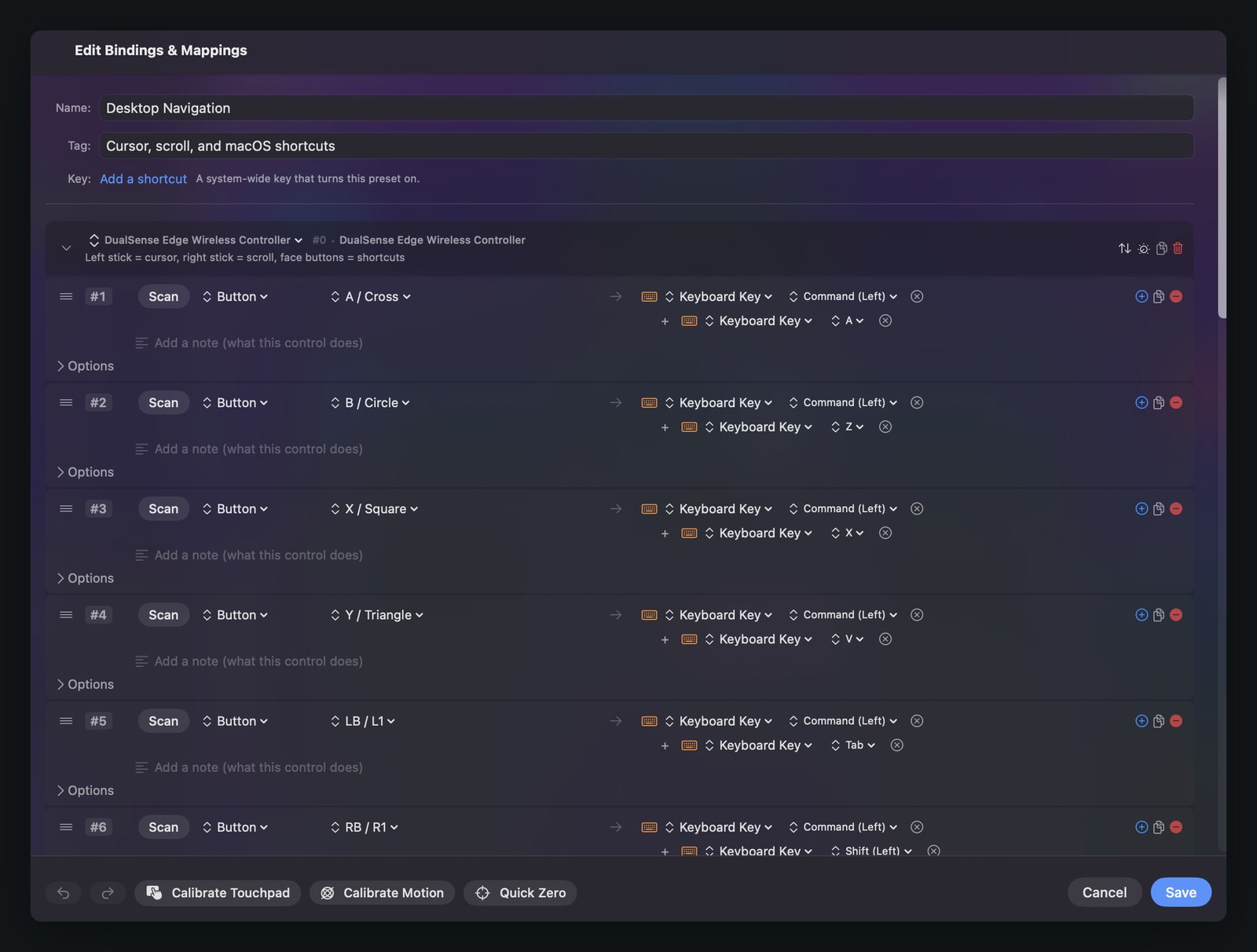
- Chords. A binding can require a second button held, so Triangle plus D-pad up runs a macro while D-pad up alone keeps its normal job. Set it under Press Behavior with the new While holding menu.
- Gyro ratcheting. The new Pause Motion While Held app action stops motion aim while a button is held, so you can re-aim the controller without dragging the cursor, the way you lift a mouse off the desk.
- The fn and Globe key is now available in two places, because macOS treats them as two different things. fn / Globe (hold) is under Modifier Keys and adds the fn modifier to another key, which is how shortcuts like Globe plus E and Globe plus D work. Globe Key (Emoji) is under Special Keys and presses the Globe key on its own, firing whatever you have set it to do.
- Keyboard Brightness Up and Down added to the Display group.
- A Cancel button on the scan overlay, so a scan can be cancelled without a keyboard.
- The help guides have a search field, plus new guides for chords, the emergency stop, and the dictation and accessibility keys.
- New built-in preset Anki in Desktop & Productivity. The face buttons rate flashcards, the bumpers undo and replay audio, stick clicks mark and bury, and the D-pad scrolls the card. Every row is labeled with its Anki action, and Anki is in the Smart Preset Maker's app list too.
Improved
- Presets can be reordered by dragging, and dragged from one folder into another. Drop a preset onto another to place it there. The order you set now sticks, instead of rearranging itself whenever a preset was edited.
- Bindings can be reordered by dragging the handle on the left of each row. The row lifts and follows the pointer, the list opens a gap where it will land, and a row with its Options open folds them away while you drag it.
- The binding editor scrolls and expands smoothly. Moving the pointer across the list no longer makes every row redraw, and row measurements no longer feed back into the layout.
- The scan button detects modifier keys pressed on their own, including Shift, Control, Option, Command and the fn or Globe key, plus the right Command key and F16 to F19. None of these could be scanned before.
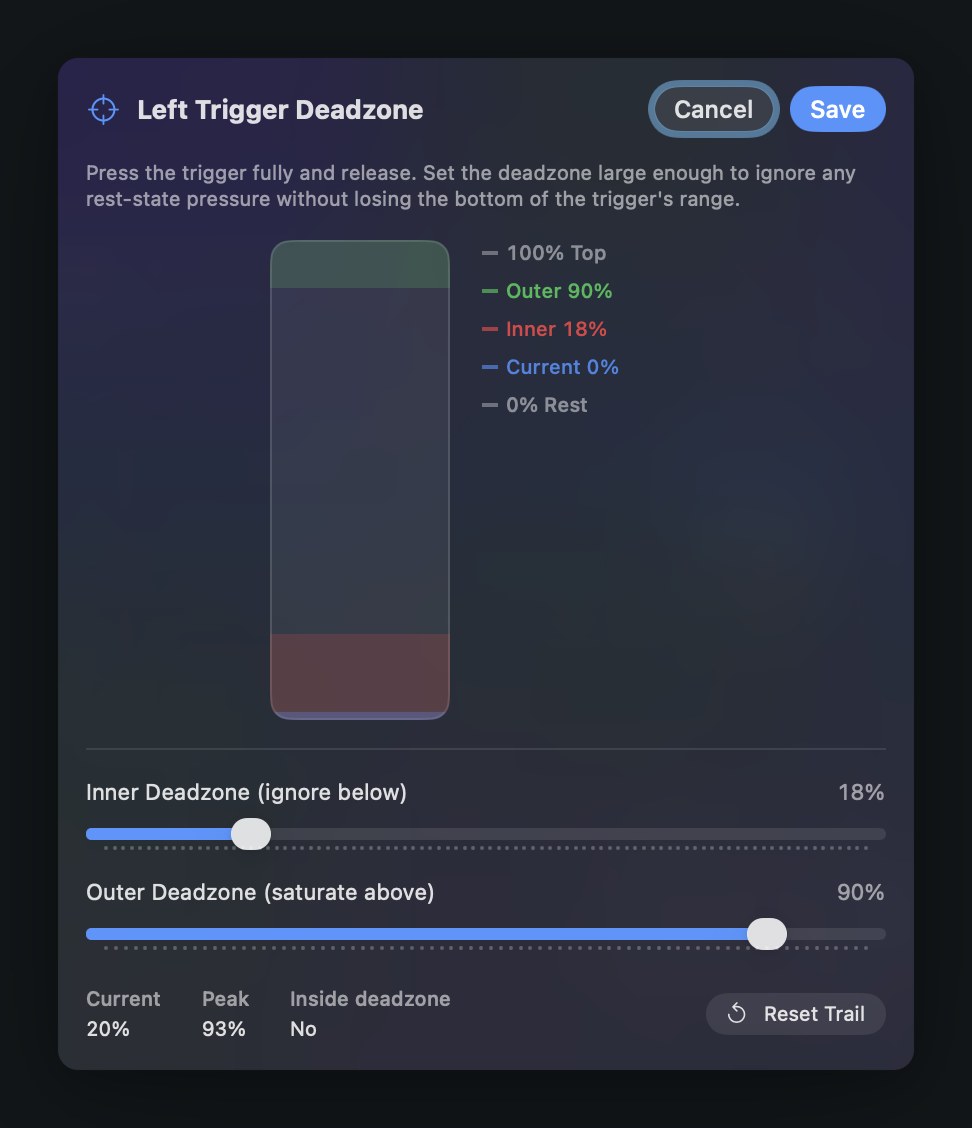
- The trigger deadzone bar is see-through, so the red inner deadzone band stays visible while you pull the trigger.
- InputConfig no longer opens a second copy of itself. Two copies fought over the keyboard and mouse, and only one could use the emergency stop.
- The app now says so when another app has taken the emergency stop shortcut, instead of failing silently.
- Editing a preset while it is running takes effect straight away, instead of waiting for a restart.
- Cursor motion from a stick no longer asks the system where the cursor is on every frame. This was the cause of high CPU with Variable Sensitivity switched on.
Fixed
- Presets that use only the trackpad, a cursor region, or a Mac tap did nothing unless a game controller happened to be connected. They now work on their own, which is the whole point of them.
- A crash when dragging presets or folders in the sidebar.
- Duplicating a binding or a slot, and converting a preset between controllers, now keep every setting. Chords, macros, deadzone and the rest used to be dropped.
- Bindings switched to Axis or Hat by hand now pick a direction, so they fire the way the menu says.
- Dragging with a controller works. Holding a mapped click while moving the stick now sends real drag events, so window moves, text selection, sliders, and drag and drop all work.
- Slow scrolling from a stick is smooth instead of dead or jittery. The fractional part is carried between frames the way cursor motion already was.
- A stick resting at the edge of its deadzone no longer chatters on and off every frame.
- A controller reconnecting over Bluetooth no longer shows up twice in the list.
- Release notes did not appear for people who already had the app installed, so earlier updates arrived silently.
Tap the Mac needs the right Mac
The sensor InputConfig reads is published on M2 and later, and on M1 Pro, M1 Max, and M1 Ultra. A base M1 MacBook Air or M1 13-inch MacBook Pro does not have it. When the sensor is absent, the feature does not appear in the app at all.
Earlier releases
1.3 back to the first public release, newest first.
1.3
build 24New
- Knob modes for MIDI dials. Dial mode treats the center of the knob as zero, so scrolling and mouse motion speed up the further you turn, with a deadzone to stop at center.
- Turn mode fires a nudge for every few steps of rotation, clockwise or counterclockwise, built for volume, brightness, and stepped scrolling.
- Both modes work with the sensitivity curves, deadzone settings, and variable speed the analog sticks already use.
- System volume as a fader: an output that makes the Mac's volume follow a knob, the pitch wheel, aftertouch, or a controller trigger 1-to-1.
- Turn Step setting per binding: Fine, Normal, Coarse, or Chunky nudge sensitivity for Turn mode.
- System Function outputs. Bind anything to volume up and down, mute, play and pause, track skip, screen brightness, Mission Control, Launchpad, Spotlight, lock screen, the screenshot toolbar, running a Siri Shortcut, or opening any app or URL.
- New built-in preset MIDI: Knob Deck in MIDI & Creative. Volume fader on CC 7, Dial scrolling on the mod wheel, Turn arrow nudges, pedal click, and pad keys, ready to remap.
- New built-in preset MIDI: Media Deck. Pads and knobs running media keys, stepped volume, and brightness.
- A What's New popup appears once after each update with that version's changes.
- An About button on the welcome screen opens the redesigned About page: the story behind the app, the changelog, source code, and support.
- A new Accessibility area in Settings: app-wide text size, bold text, reduced transparency, and reduced motion, layered on top of the system settings.
- MIDI became a full Live Visualizer template, switchable from the layout picker and automatic for MIDI presets. A seven-octave velocity-shaded keyboard with octave labels and bound-note dots, a named dial for every knob, knob-mode badges, pitch bend and aftertouch meters, a 16-channel activity strip, and a rolling event log with velocities. Everything renders at rest before a device is connected, and every key and knob still clicks through to its bindings.
- A new welcome-screen card and demo for MIDI devices as input.
- Five new welcome-screen feature cards: Siri Shortcuts, Keyboard and Mouse as Input, Hold and Double-Tap, Per-App Auto-Switch, and Cursor Regions, with the grid reordered by importance.
Improved
- The volume fader only takes over once you actually move the control, about 2 percent of its travel from where it was resting when the preset activated, so activating a preset never jumps the volume to wherever a knob was left.
- The YapToText shoutout moved to the bottom of the welcome screen, with a one-click App Store link.
- The version number shows in the menu bar popover.
1.2.1
build 23Improved
- MIDI works with no game controller connected, so a MIDI keyboard or pad controller can drive your Mac on its own.
- Connected MIDI devices are listed by name when you pick an input, so you can confirm yours was found.
- Input groups are called Input Device rather than Joystick, since a group can hold MIDI, keyboard, and mouse bindings too.
- The scan panel says that you can play a note or twist a knob to map it.
Fixed
- MIDI devices did not appear as an option when creating a binding.
- A group no longer warns about a missing controller when nothing in it needs one.
1.2
build 22New
- MIDI devices can be used as an input. Bind notes, pads, knobs, the pitch wheel, the sustain pedal, and aftertouch to keys, clicks, macros, or anything else.
- DualSense Edge extra buttons. The back paddles, both FN buttons, and mute are bindable like any other input, over Bluetooth and USB.
- New help guides for MIDI input and the DualSense Edge extra buttons.
- A changelog you can read inside the app, from the welcome screen or About.
Improved
- Light bar colors work over Bluetooth: preset colors, the RGB cycle, and brightness all reach the controller wirelessly.
- More reliable controller data reading behind the scenes, with an automatic fallback when a Bluetooth session goes quiet.
1.1.1
build 21Fixed
- A crash that prevented InputConfig from launching on macOS 14 Sonoma.
1.1
build 20New
- A much larger preset library: games, creative and productivity apps, and accessibility workflows including VoiceOver Navigation, Numeric Keypad, Menu Bar and Dock, Emulator, and Comic Reader. The count printed in the original entry does not match how the library is counted today, which is explained below.
- Much broader controller compatibility. DualShock 3, Logitech F-series in D mode, fight sticks, multi-mode pads, and wheels connect through the rebuilt device support, with correct D-pad handling on far more controllers.
Improved
- Crash recovery fully restores your active preset, including restarting the mapping engine.
- VoiceOver: the input scan overlay announces itself and speaks what it detected, and the binding editor controls are labeled.
- Faster and lighter, with large reductions in per-frame work across the input path and the interface.
Fixed
- Keyboard shortcut outputs with modifiers, Cmd+C and friends, fire as real combinations.
- Stuck mouse buttons after sleep, stuck MIDI controllers and pitch bend after stopping a preset, and edits to a running preset not applying until reactivation.
- Macros: Toggle plus Macro works as documented, the editor shows macro state accurately, and duplicating a binding keeps every setting.
- Live Visualizer: the zoomed controller map stays cleanly inside its panel.
1.0
builds 16 to 19Released
- Initial release. The changelog entry is those two words, so read it this way: anything on this page without a later version beside it shipped at or before 1.0. That includes gamepad, keyboard, mouse and trackpad input, controller touchpads, motion, keys, clicks, mouse motion, scrolling, macros, turbo, hold and double-tap actions, MIDI output, the preset library and the Smart Preset Maker, per-app auto-switch, and the Live Visualizer.
Where this page differs from the raw file
Two lines above are worded differently from the CHANGELOG.md file on GitHub. Both were checked against the shipping 1.4 (28) source, and the source won.
The preset count in 1.1
The original 1.1 entry says 431 built-in presets. That number does not describe what sits in your sidebar, so this page does not repeat it. Counted in the shipping 1.4 build the library is two separate things: 31 built-in presets that seed your sidebar the first time you open the app, and a separate library of 458 profiles that the Smart Preset Maker builds from on demand and that never appear in the sidebar on their own. Presets and per-app switching has the folder breakdown and the full numbers.
Which half the 1.1 entry was describing matters, because the five accessibility workflows it names are in the second one. VoiceOver Navigation, Numeric Keypad, Menu Bar and Dock, Emulator / Arcade, and Comic Reader are Smart Preset profiles, so you reach them by asking the Smart Preset Maker for one rather than by finding them already in your library.
The help guide line in 1.4
The original 1.4 entry says the release added guides for chords, ratcheting, and tapping the Mac. In the shipping build there are 25 help guides in total, and 1.4 added three of them: chords, the emergency stop, and the dictation and accessibility keys. Ratcheting is a section inside the existing gyroscope guide rather than a guide of its own, and tapping the Mac does not have its own guide yet. The search field is there as described.
Updating, and the notes in the app
The same release notes ship inside InputConfig, and updating never touches what you have built.
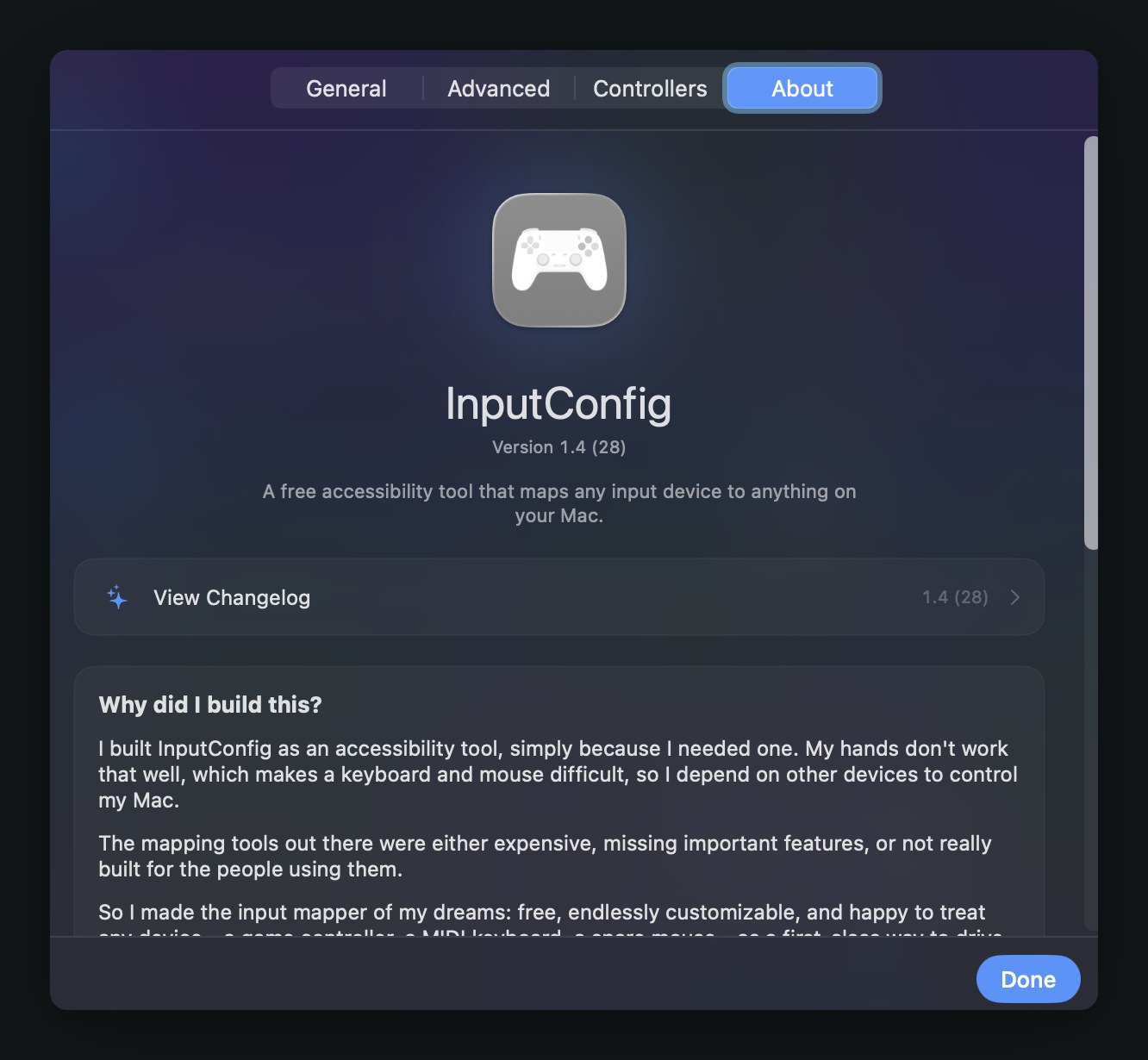
Updates arrive through the Mac App Store like any other App Store app. InputConfig does not check for them itself: its sandbox is granted no network access at all, so it cannot. After an update it shows a What's New popup once, and the full history is always available from the welcome screen or from Settings, About, View Changelog.
Which version am I running?
Will updating erase my presets?
What does 1.4 require?
Is anything in these releases paid?
Something in 1.4 is not behaving. Where do I start?
Source and links
- CHANGELOG.md on GitHubThe raw release history the app itself ships
- Source code on GitHubThe full app, open under the MIT license
- Mac App StoreDownload InputConfig 1.4, free
- InputConfig documentationEvery guide in the cluster, in one list
- InputConfig overviewWhat the app is and who it is for
- Tap your MacBook to trigger an actionThe headline 1.4 feature, in detail
- The PlayStation Access Controller and adaptive setupsEmergency stop, one-stick driving, dictation and zoom
- Binding and output referenceChords, the fn and Globe keys, and everything bindable
- Support[email protected]