
InputConfig: Controller to Keyboard and Mouse for Mac
A keyboard and a mouse assume a certain pair of hands. InputConfig lets you use something else instead: a game controller, a MIDI keyboard, a second mouse, your trackpad, or a knock on your MacBook's case. Free, open source, and no drivers.
This page has moved. The current version lives at the InputConfig site, which is kept up to date with every release.

Version 1.4, free on the Mac App Store. Read the documentation.
Why it exists
Our founder's hands do not get on with a keyboard. Controllers are a different shape of problem: they are held rather than reached across, they can be worked one-handed, and the adaptive controller ecosystem around them is the most mature accessible input hardware you can actually buy. So the question became whether a controller could run a whole Mac, not just a game.
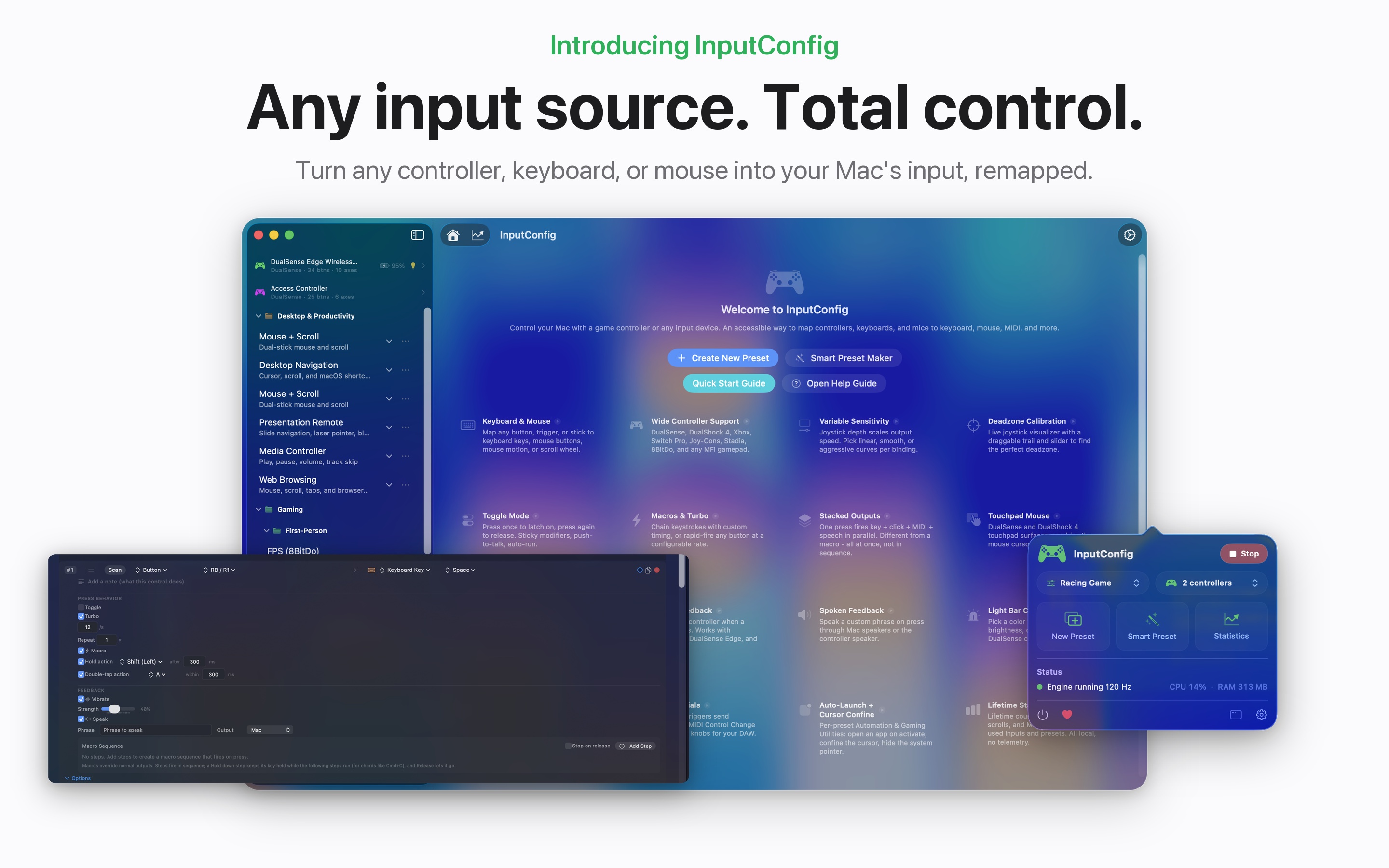
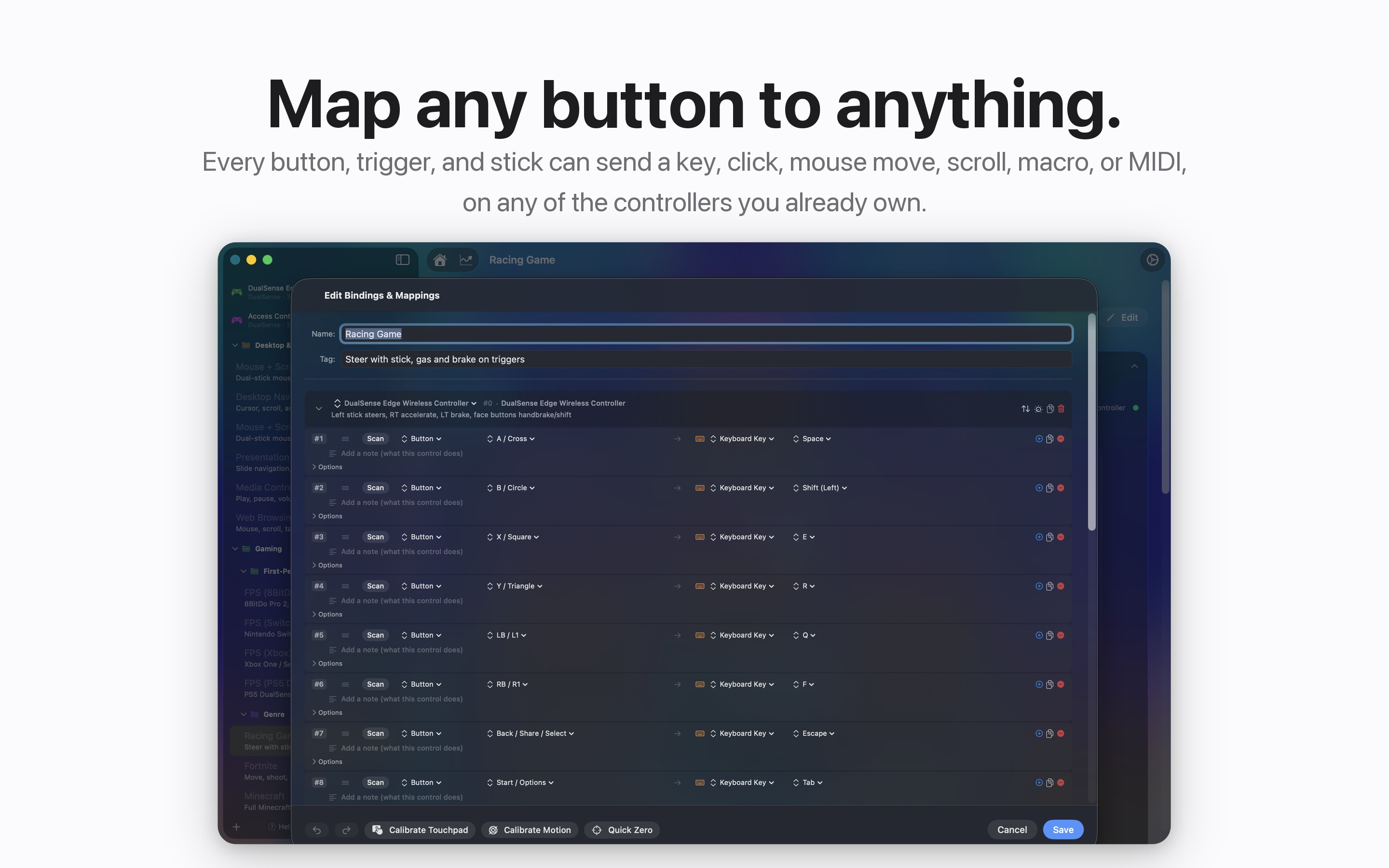
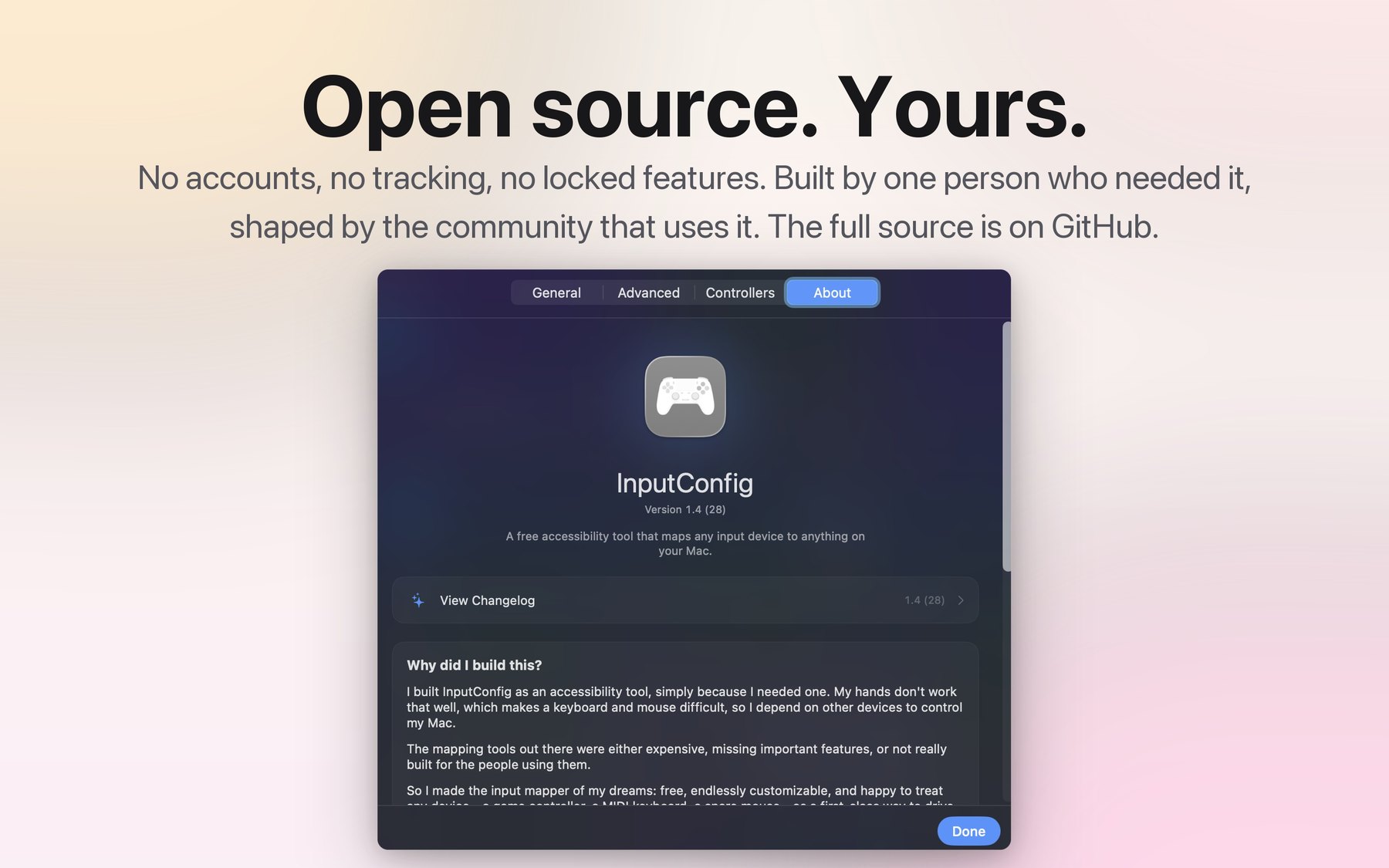
It can. Every button, trigger, stick, key, pad, and knob you own becomes a key, a click, mouse movement, a scroll, a typed phrase, a macro, a MIDI note, or a system function like volume or Mission Control. The Mac's own keyboard, mouse, and trackpad work as inputs too, including Force Touch pressure. Nothing is locked, nothing needs an account, and the app cannot reach the network at all.
New in version 1.4
The release notes run long. These are the six that change what the app can do.
- Tap the Mac
- Your MacBook has a motion sensor in it. InputConfig listens to that sensor, so two knocks on the palm rest fire one output and three knocks fire another. It is the only input in the app that needs nothing plugged in at all.
- The emergency stop
- One action that only ever stops. It halts the engine, releases every held key, button, and note, and gives the pointer back. A system-wide shortcut, a two-second hold on Home, PS, or Guide, and a menu bar button all reach it. The controller hold works no matter what the active preset maps that button to, so a preset cannot map away the way out of itself.
- Chords
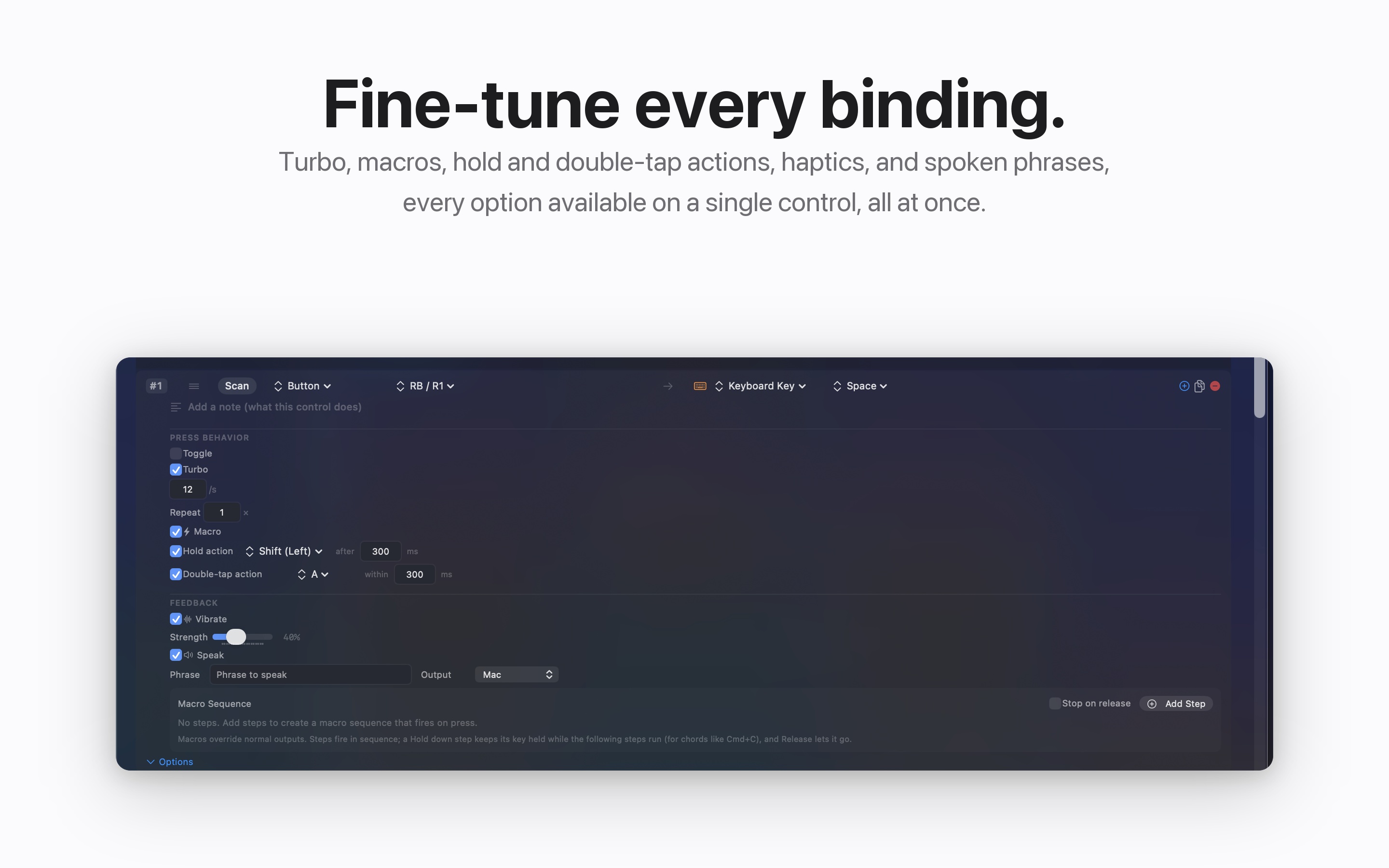
- A binding can now require a second button held. Triangle plus D-pad up runs a macro while D-pad up on its own keeps its normal job, so one physical control does two things. On a controller where only a few buttons are reachable, that matters.
- Per-preset shortcuts
- Any preset can have its own system-wide key that switches straight to it, and pressing that key again stops it. One key for the desktop, one for the browser, one for the game.
- Gyro ratcheting
- Motion aim runs out of wrist. Pause Motion While Held stops motion from feeding the cursor while a button is down, so you can swing the controller back to a comfortable angle and carry on, the way you lift a mouse off the desk.
- Dictation, Zoom, and Speak Selection
- These used to mean reconstructing a system key combination by hand. They are now first-class outputs in their own Accessibility group, alongside Zoom In, Zoom Out, and Zoom On or Off. Start Dictation presses the dictation key itself.
Read the full release notes for every version back to 1.0.
See it in action
Real setups, each one built in a few minutes from what ships in the app.
One-handed desktop
You set up
“Left stick moves the cursor, R2 clicks, L2 right-clicks, the D-pad arrows through menus”
What you get
Full mouse and keyboard control from one hand, with no keyboard on the desk at all.
Three actions, one button
You set up
“Tap Square to copy, hold Square to paste, double tap Square to undo”
What you get
Tap, hold, and double tap each fire their own binding, so a few reachable buttons cover a whole shortcut set. Add a chord and the same button does a fourth thing while Triangle is held.
A whole phrase from one press
You set up
“Press Triangle”
What you get
InputConfig types your full email signature, address, or any saved phrase in a single press.
A knob box instead of a controller
You set up
“Plug in a MIDI knob box with no game controller attached at all”
What you get
A knob becomes a real volume fader that the Mac's level follows one to one. Pads become media keys. The sustain pedal becomes an on and off switch.
Tuned to your range of motion
You set up
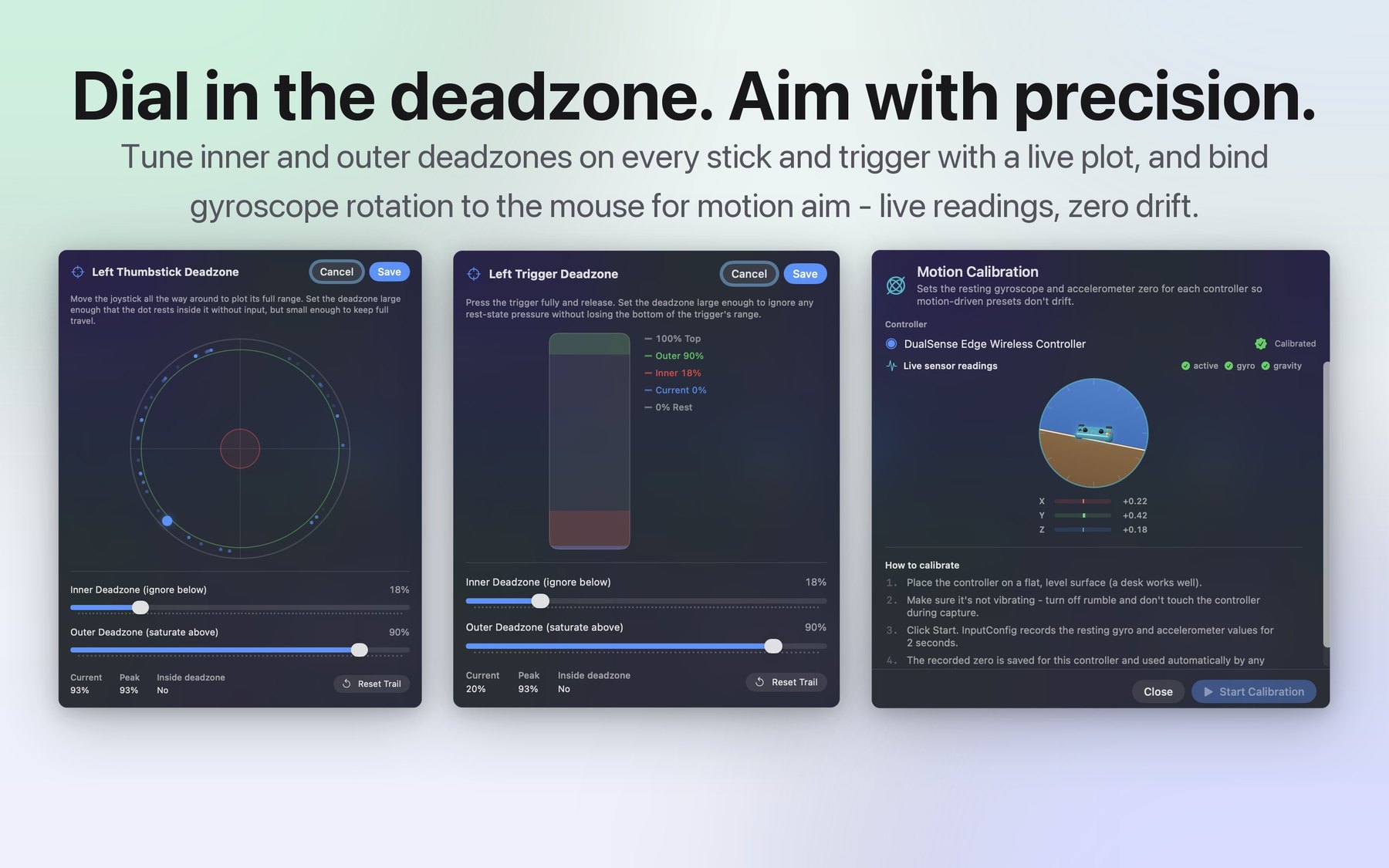
“Open deadzone calibration and drag the sliders while watching your real stick input on the live plot”
What you get
A stick that only travels a little, or travels shakily, still moves the cursor smoothly. The controller adapts to your body, not the other way around.
Presets that follow you
You set up
“Focus your browser, then your text editor”
What you get
InputConfig switches presets per app, so the same buttons always do the right thing for whatever is in front of you.
What it does
What it reads
- Every button, trigger, stick, and D-pad on any MFi or HID-compatible gamepad, with no drivers.
- The DualSense Edge's back paddles, both FN buttons, and the mute button, over USB and Bluetooth.
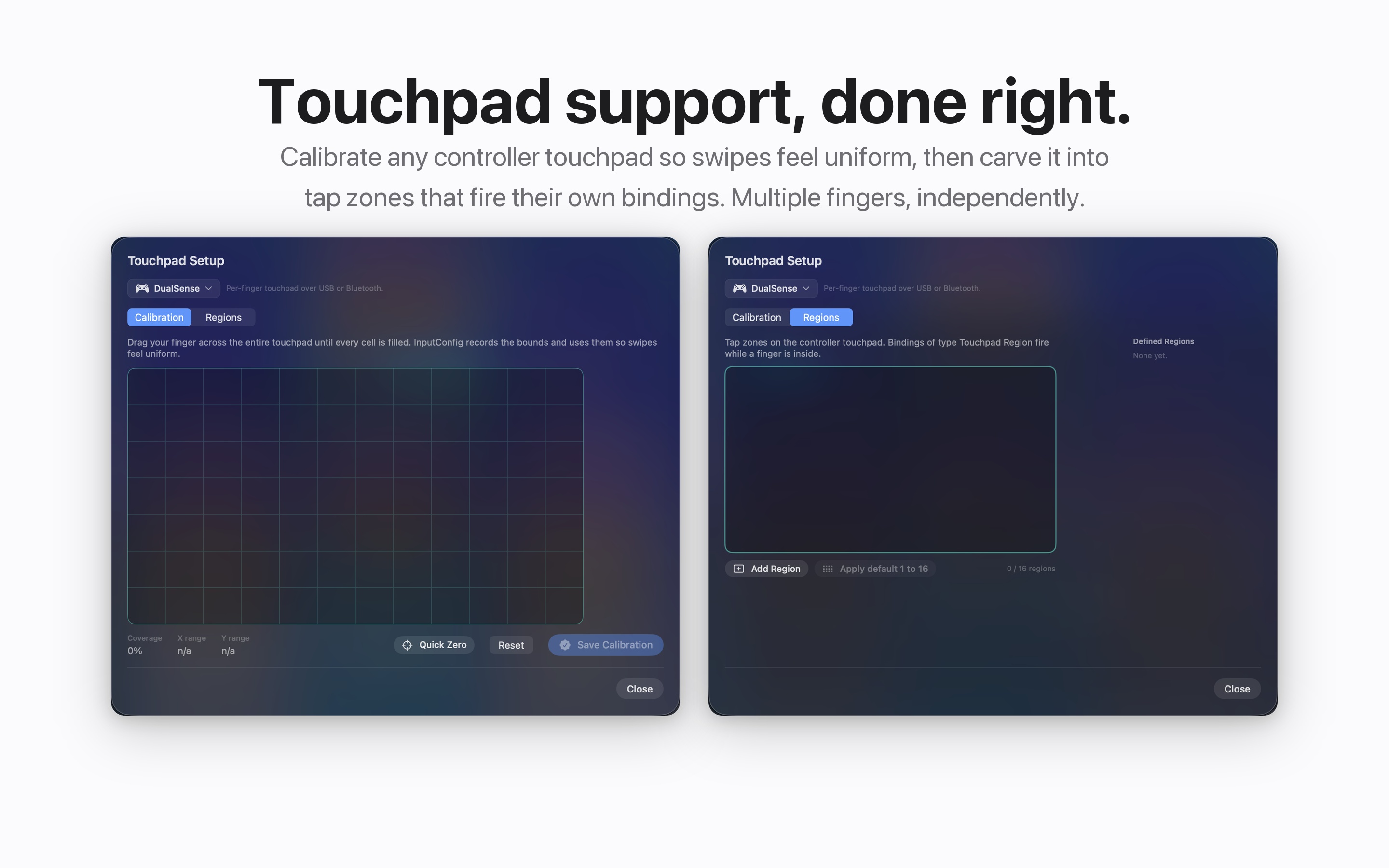
- Controller touchpads, with per-pad calibration, tap regions, and two fingers tracked independently.
- Gyroscope, accelerometer, and attitude on controllers whose motion sensors macOS exposes.
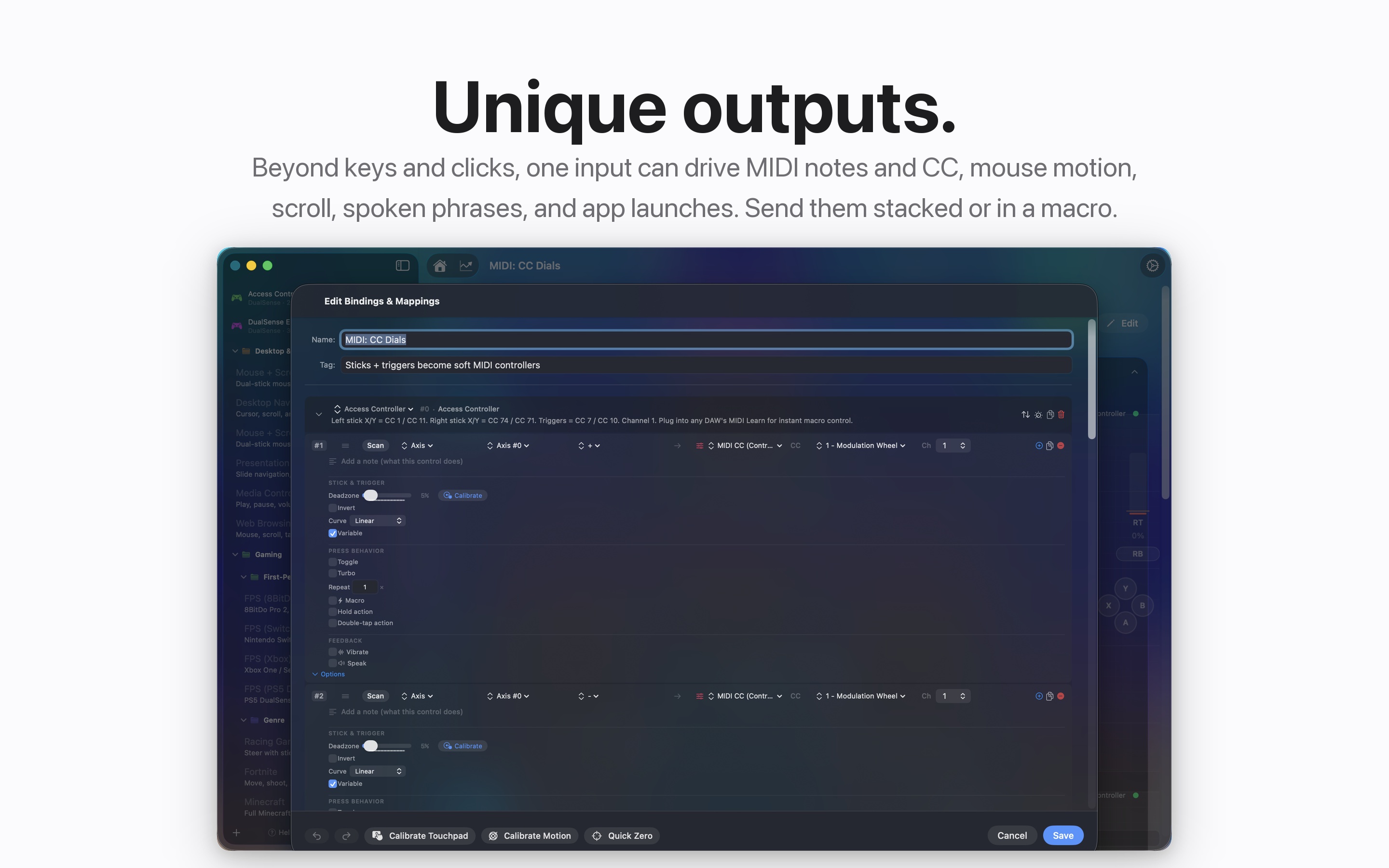
- MIDI notes, pads, CC knobs, sliders, pedals, the pitch wheel, aftertouch, and Program Change, with no game controller needed alongside.
- Your Mac's own keyboard, a second keyboard, extra mouse buttons, and Force Touch trackpad pressure.
- Regions of the screen, directional zones on a stick, and a knock on your MacBook's case.
What it sends
- Keyboard keys, including real modifier chords, and whole typed phrases from one press.
- Mouse buttons, analog mouse motion, smooth scrolling, and single scroll steps.
- Macro sequences with custom timing, chord steps that hold one key while tapping others, and interrupt on release.
- MIDI out to a DAW through a virtual port: notes with velocity, CC, pitch bend, Program Change, and transport.
- Spoken phrases and haptic feedback, so you can confirm a press without watching the screen.
- System functions: volume, media keys, brightness, Mission Control, Spotlight, the lock screen, any Siri Shortcut by name, and any app or URL.
How you shape it
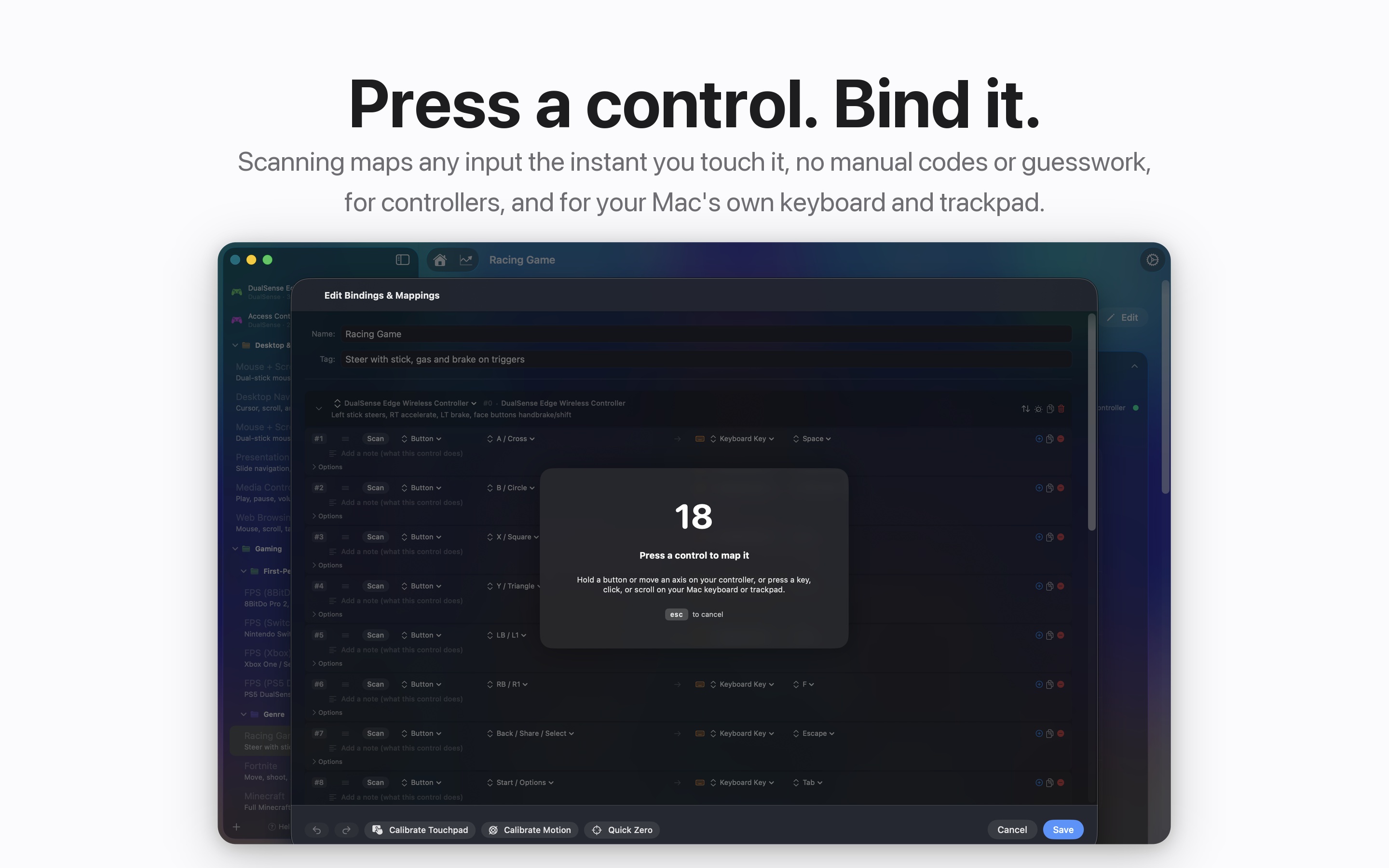
- Press Scan and touch the control. It binds the instant you touch it, on a controller, a MIDI device, or your Mac's own keyboard and trackpad.
- Toggle, turbo, repeat counts, hold actions, double-tap actions, and chords, all available on one control at once.
- Inner and outer deadzones with a live plot, axis inversion, three sensitivity curves, and variable sensitivity that scales output speed with how hard you press.
- Thirty-one presets ship with the app, and the Smart Preset Maker builds a tailored one from a library of 458 games, apps, and workflows.
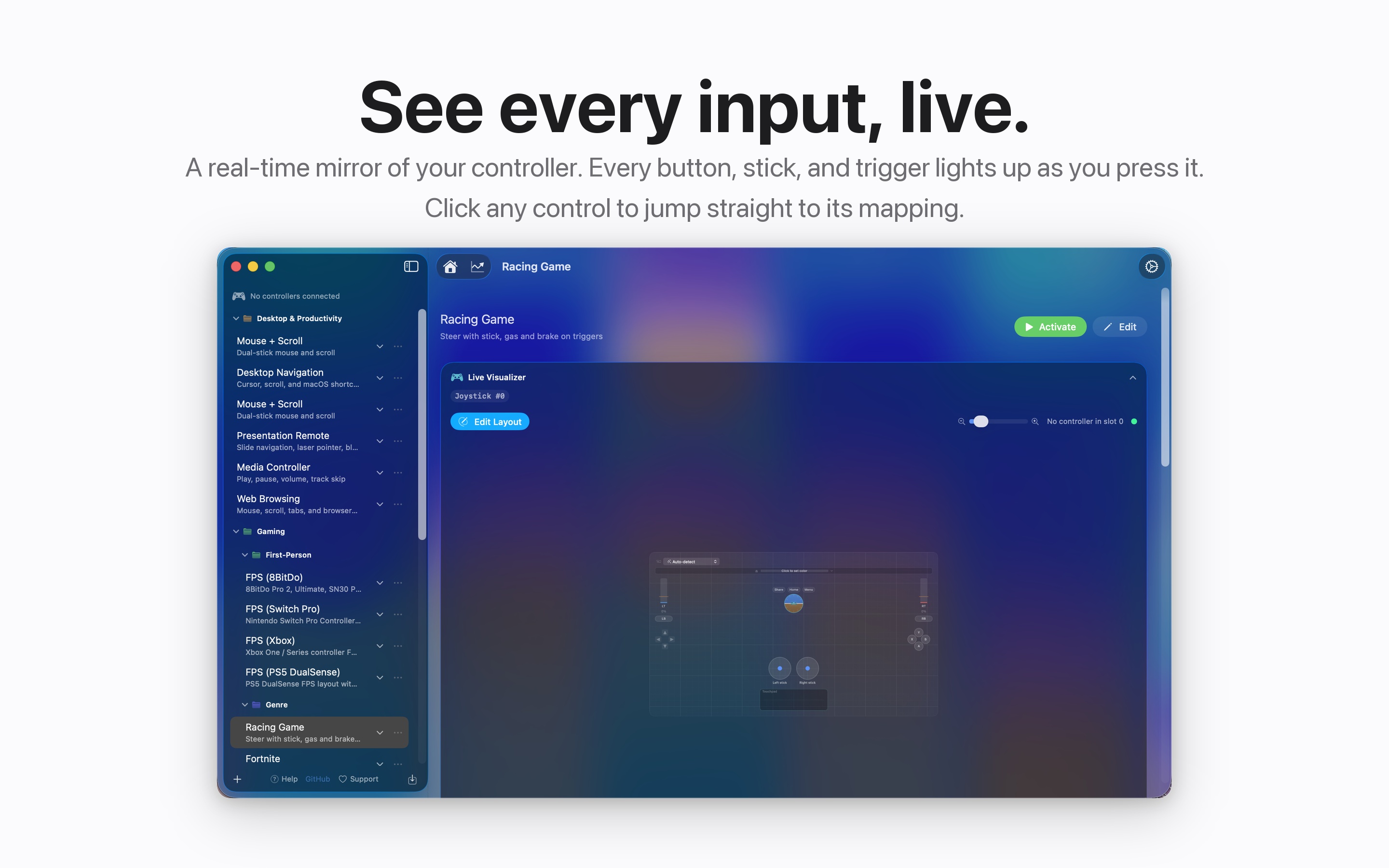
- The Live Visualizer mirrors every connected device in real time, and clicking any control jumps straight to its binding.
The full binding and output reference lists every input and every output by name.
A closer look
Built for accessibility
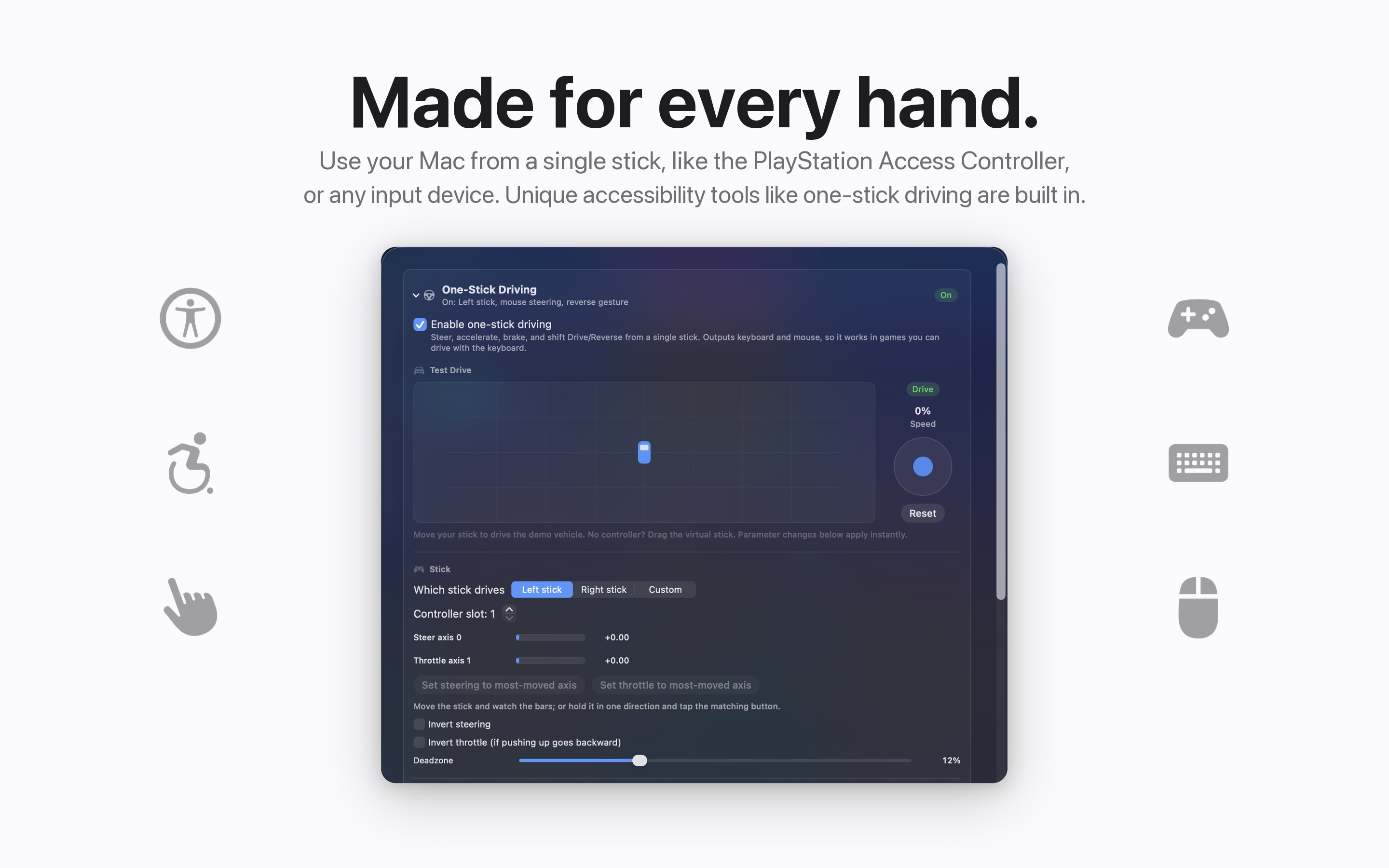
This is the software side of the problem our joystick toppers solve in plastic: the standard input device does not fit every body. If a controller is the thing you can hold, press, or mount, InputConfig makes it drive your whole Mac.
Documentation
Written out in full, for when the pitch is not the thing you need.
Connect a controller
Pairing, the Accessibility permission, your first preset, and the quirks of each controller.
Binding reference
Every input it reads and every output it sends, with the per-binding options in one table.
Controller not working
Fixes by symptom, and how to get out of a preset that has taken over.
All documentation
Presets, MIDI, adaptive setups, Tap the Mac, release notes, and the rest.
Download InputConfig free
InputConfig needs macOS 14 or later and the Accessibility permission, which is what lets any app type and move the mouse on your behalf. That is the only permission it asks for, and it is the only one it has: there is no Input Monitoring prompt and no network entitlement in its sandbox.
Source and links
- Mac App StoreDownload InputConfig, free
- DocumentationSetup, bindings, presets, MIDI, accessibility, and fixes
- Release notesEvery version from 1.0 to 1.4
- inputconfig.comThe product site, with the Tap the Mac preset to download
- Source code on GitHubThe full app, open under the MIT license
- Privacy policyNo data collected, stored, or transmitted
- More Rockstar Health softwareYapToText and everything else we make
- Support[email protected]